
Invoices and Billing History
Every order you place, paid or not, is listed on the Billing page of the panel.
Opening the Billing page
Use any of these:
- In the sidebar, click Account > Billing. A red number next to it shows how many orders are waiting for payment.
- In the top bar, click your name and choose Billing.
- On the dashboard, click View billing in the pending payments notice, or the Orders or Invested counter.
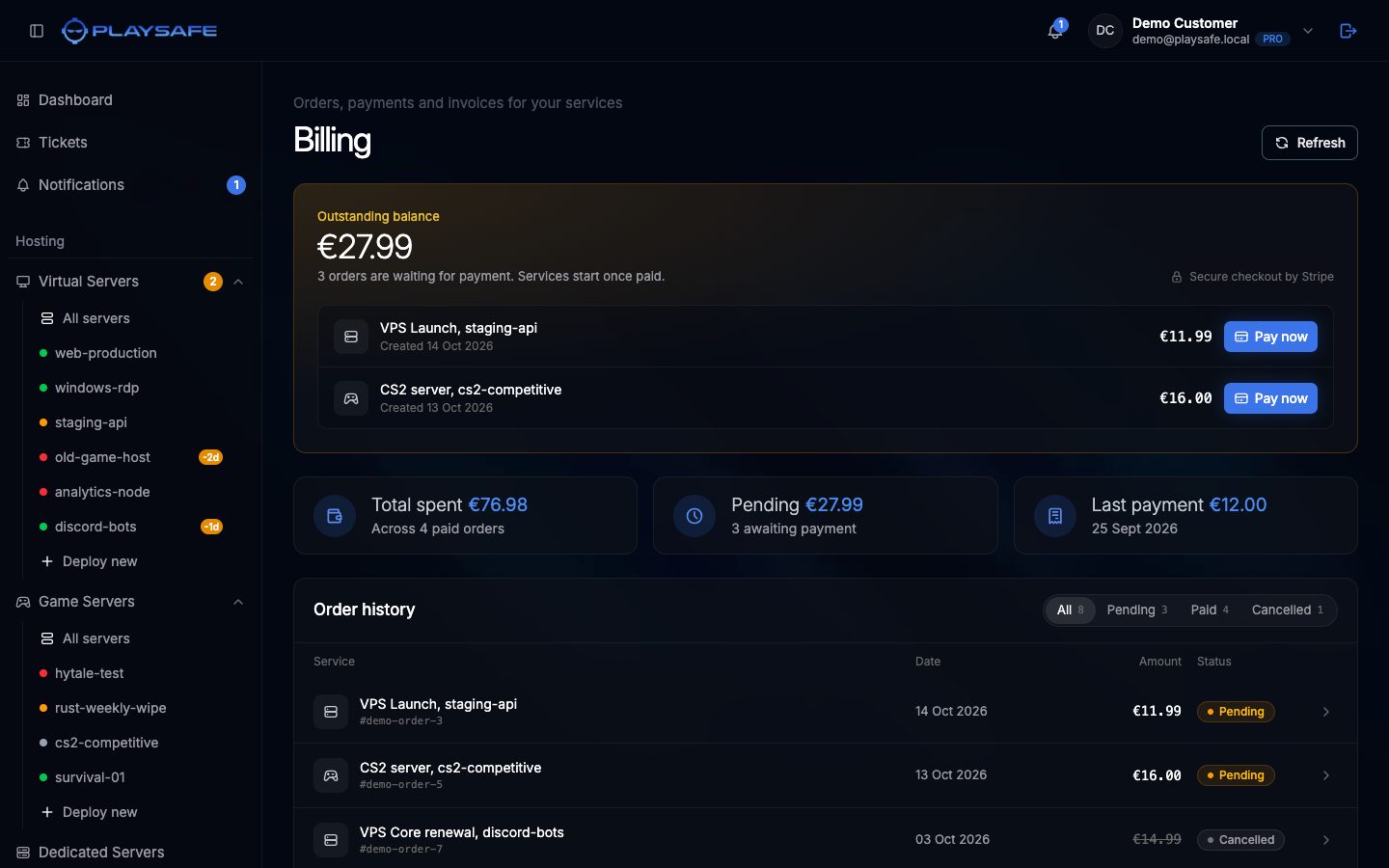
What the Billing page shows
Outstanding balance appears at the top only when you have unpaid orders. It shows the total due and each unpaid order with a Pay now button.
Below it, three cards:
| Card | What it shows |
|---|---|
| Total spent | The sum of your paid orders |
| Pending | The amount waiting for payment |
| Last payment | The amount and date of your latest paid order |
Order history lists all your orders, newest first, with the service, the order ID, the date, the amount and the status. Use the filters All, Pending, Paid and Cancelled (refunded orders also appear under Cancelled). Refresh at the top reloads the list.
Order statuses
| Status | Meaning |
|---|---|
| Pending | Created and not paid yet. On the order page it reads Awaiting payment. |
| Paid | The payment went through. |
| Cancelled | Cancelled before payment, by you or automatically. Nothing was charged. |
| Refunded | Paid and then refunded by the support team. |
The order page
Click any order to open it.
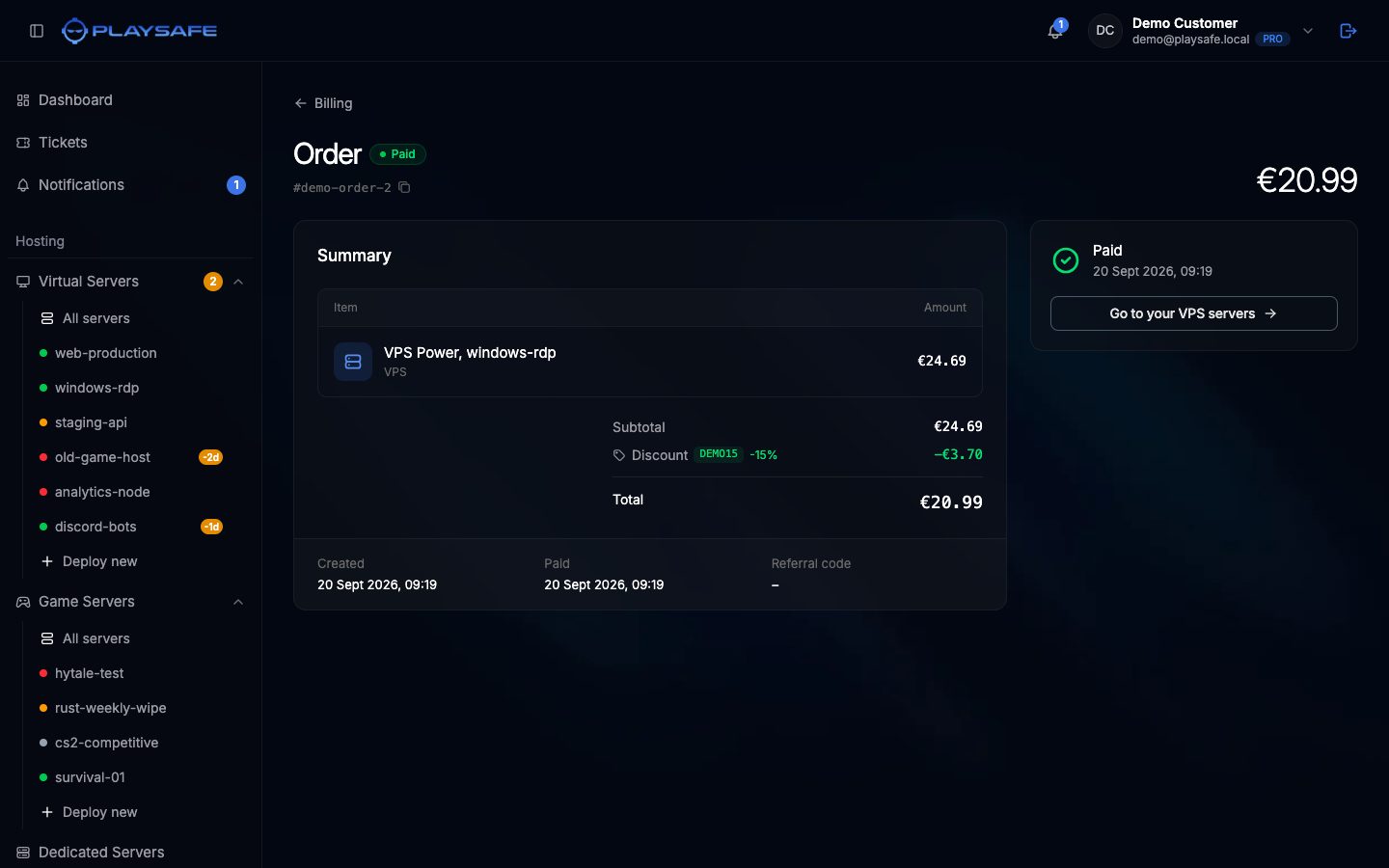
- Header: the status and the order ID. Click the ID to copy it.
- Summary: the item ordered and its price, the Subtotal, the Discount (with the code and the percentage) when one was used, and the Total.
- Created, Paid and Referral code at the bottom.
- On the right, what you can do:
- an unpaid order has Pay and Cancel this order, and a Referral code box;
- a paid order shows the payment date and a button to go to your services;
- a cancelled or refunded order says it will not be charged.
Invoices
The panel has no invoice download. The order page is the record of each payment, with the description, the price breakdown, the discount and the payment date. You also get a payment confirmation by email.
Need an invoice with your company details?
The name on your account is the one PlaySafe uses on invoices. You can change it in Account > Account, Profile section.