
server.properties
Every Minecraft Java server is configured through server.properties: difficulty, game mode, player limit, view distance, MOTD and more. The Options tab edits it for you with a form, and has a raw mode for direct text edits.
To open it, go to Hosting > Game Servers > your server and click the Options tab. It is not shown on Velocity and Waterfall proxies.
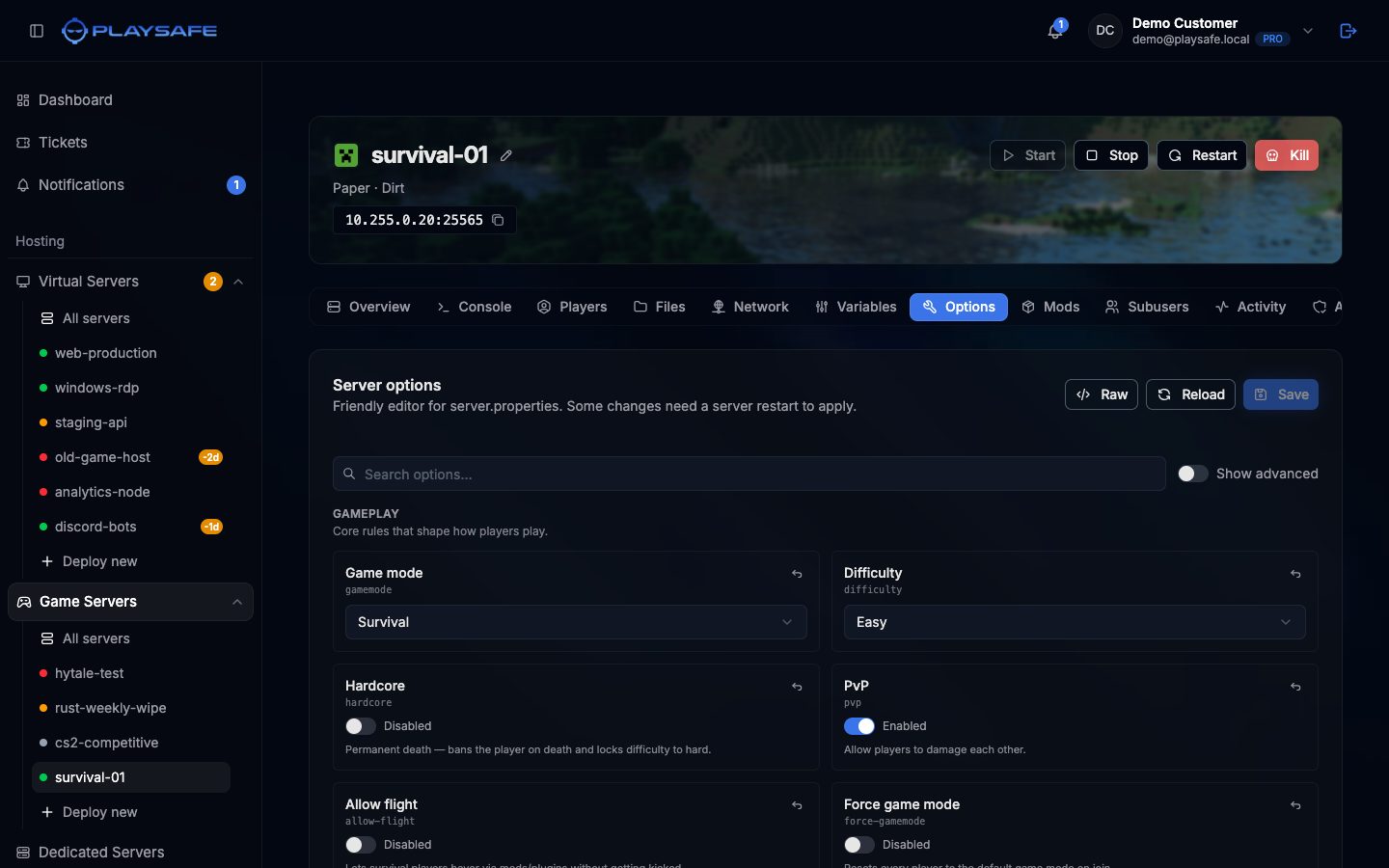
Change a setting
- In the Server options card, find the setting. Type in Search options… to filter by name, key or help text.
- Change the value. The field gets a Modified badge and the Save button shows how many settings changed, for example Save (2).
- Click Save. The Apply changes? dialog lists each changed key with its old value (−) and new value (+).
- Click Save in the dialog. A message confirms “server.properties saved. Restart the server for some changes to apply.”
- Restart the server with Restart in the server header if the setting needs it.
To undo your edits before saving, click Reload to read the file again.
How fields look
Each field shows a friendly label and, under it, the real key (for example max-players), so you can match it with guides you find online.
| Control | Used for |
|---|---|
| Switch (Enabled / Disabled) | true or false settings like pvp or white-list |
| Dropdown | settings with fixed values like difficulty or gamemode |
| Number, with a slider for small ranges | numbers like max-players or view-distance |
| Text, password or URL box | text like level-name, rcon.password or resource-pack |
| MOTD editor | motd, with color and format buttons |
Badges next to the label:
| Badge | Meaning |
|---|---|
| Restart | The change only applies after a server restart. |
| Advanced | Hidden until you turn on Show advanced. |
| Modified | You changed this value and have not saved yet. |
The arrow icon at the top right of a field restores the Minecraft default value. It only appears when the current value is different from the default.
Groups
Fields are grouped into Gameplay, Players & access, World, Spawning, Performance, Permissions, Resource pack, Server identity and RCON & Query. Turn on Show advanced to see the less common settings in each group.
Raw mode
Click Raw to replace the form with a text box holding the whole server.properties file. Click Form to go back.
Use it to paste a configuration from another server or to set a key the form does not show.
Raw mode replaces the entire file
Settings you will change most
| Key | What it does |
|---|---|
motd | Text under your server name in the multiplayer list. |
difficulty | Peaceful, easy, normal or hard. |
gamemode | Survival, creative, adventure or spectator. |
max-players | Player limit. |
view-distance | How many chunks are sent to each player. Lower uses less CPU and bandwidth. |
white-list | Only whitelisted players can join. Manage the list in the Access tab. |
online-mode | Checks accounts with Mojang. Leave it on unless the server is behind a proxy. |
op-permission-level | Default level given by Op in the Players tab. |
Resource pack card
Below Server options there is a Resource pack card. It writes the four resource-pack keys of this file for you. See Server Icon & Resource Pack.