
Attacks
The Attacks page is the feed of every attack PlaySafe detected on your firewalls and game protections, including the ones shared with you. Each entry is one attack, from the moment it started until it ended.
Open it from the sidebar: Security > Attacks, or with the Attacks button on the Firewalls and Game protection lists. The page has two tabs at the top right: Attacks (this page) and Notifications (see Attack Notifications).
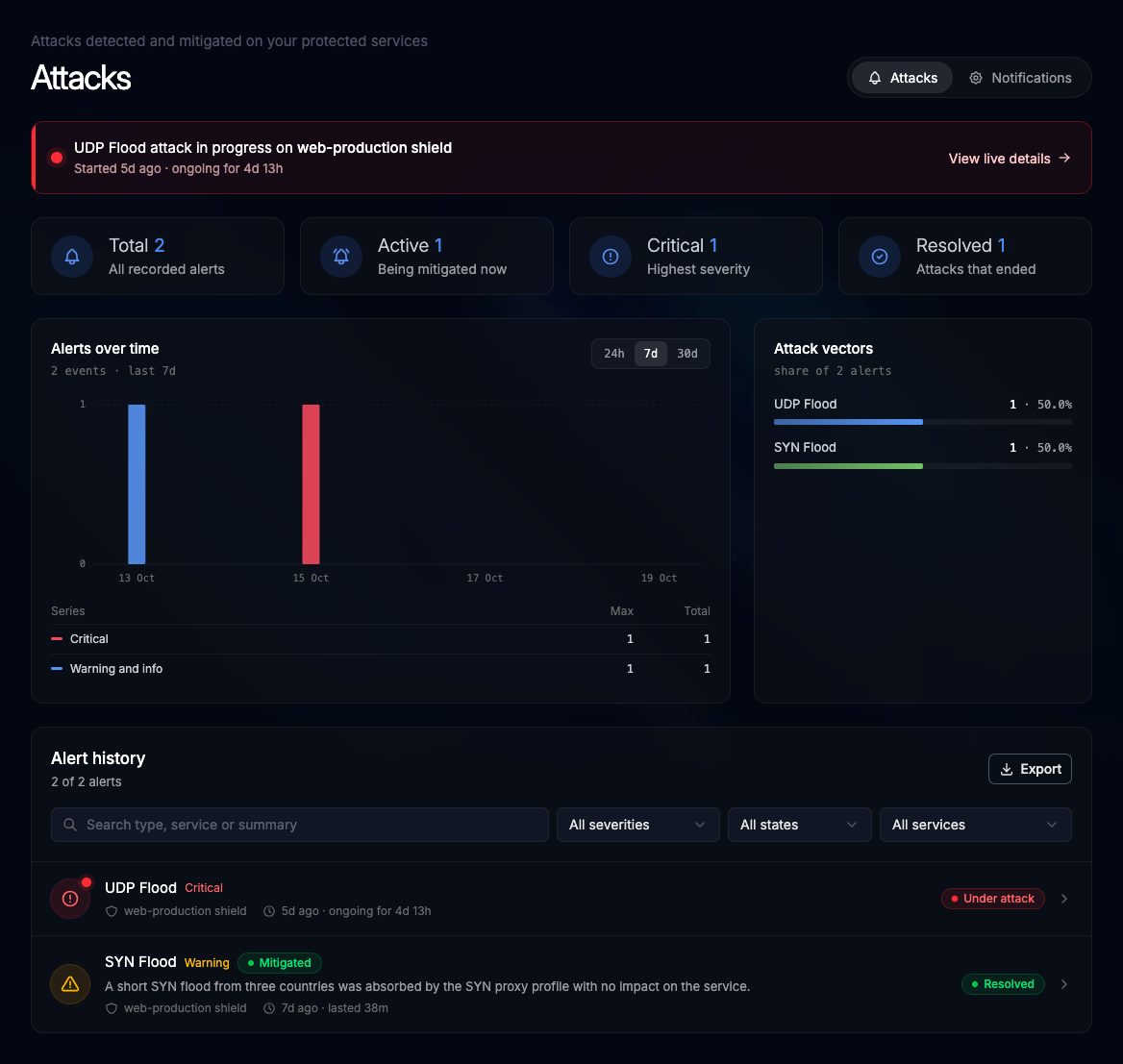
Attacks in progress
While an attack is going on, a red banner at the top reads UDP Flood attack in progress on your service (with the real attack type), when it started and for how long. Click View live details to open it.
Counters
| Counter | What it counts |
|---|---|
| Total | All recorded alerts |
| Active | Attacks going on now |
| Critical | Alerts with the highest severity |
| Resolved | Attacks that ended |
Charts
- Alerts over time: alerts per hour or per day, split into Critical and Warning and info. Switch the range with 24h, 7d or 30d.
- Attack vectors: how often each attack type appears, with its count and share.
The charts only appear once you have at least one alert.
Alert history
The list at the bottom shows every alert, newest first. Each row has:
- The attack type (for example
SYN Flood) and its severity: Critical, Warning or Info - The result once known, for example Mitigated
- The written summary, when there is one
- The service it hit, how long ago it started and how long it lasted (or ongoing for while active)
- The state: Under attack or Resolved
Click a row to open the attack. See Attack Detail.
Filters
| Filter | Options |
|---|---|
| Search | Text in the type, service or summary |
| Severity | All severities, Critical, Warning, Info |
| State | All states, Active, Resolved |
| Service | All services or one firewall or protection |
The line under Alert history shows how many alerts match (for example 2 of 5 alerts) and a Clear filters link.
Export
Click Export and choose CSV or JSON. The file contains the alerts that match the current filters: ID, severity, type, service, summary, state, result and time (JSON also includes the attack vectors).
No attacks yet
If nothing has been detected, the page says No attacks so far. When one of your protected services is targeted, the alert shows up here and on the channels set in Notifications.