
Sharing Access
Sharing gives another PlaySafe user access to your server from their own panel, without giving them your account.
Share a server
- Open Hosting > Virtual Servers and click your server.
- Click Share in the page header. The Manage Access dialog opens. Only the owner sees this button.
- Under Invite by email, type the email of the person’s PlaySafe account.
- Click Add (or press Enter).
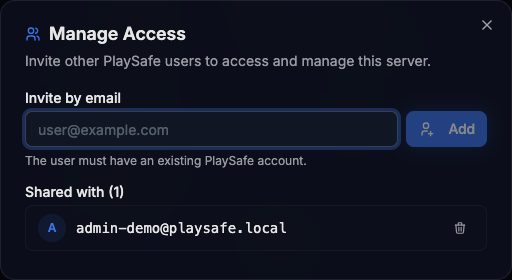
Access is granted at once. The person gets a notification in the panel and an email saying you shared the server. The Share button shows how many people have access.
The person must already have a PlaySafe account; otherwise you see “No PlaySafe account found with that email”. Ask them to register first. Sharing also needs a verified email address on your account.
Remove access
Open Share again. Under Shared with, click the bin icon next to the email. Access is removed at once.
What a shared user can do
The server appears in their Hosting > Virtual Servers list, in the Shared With Me section, with Shared by and your name.
| Action | Owner | Shared user |
|---|---|---|
| See the server, its details, metrics and activity | Yes | Yes |
| Start, reboot and stop the server | Yes | Yes |
| Download the Remote Desktop file (Windows) | Yes | Yes |
| See the Windows password in the Console tab | Yes | No |
| See and edit the edge firewall rules | Yes | No |
| Rename the server | Yes | No |
| Renew the server | Yes | No |
| Share or unshare it | Yes | No |
| Change a password from Settings | Yes | No |
| Reinstall the server | Yes | No |
!
Share only with people you trust
A shared user can power your server off. And anyone who knows the server's password can log in to it, whatever the panel shows them. After removing someone, change the password from **Settings > Change Password** if they ever had it.