
Settings Tab
Open Hosting > Virtual Servers, click your server and open the Settings tab. It has two cards: Change Password and Danger Zone.
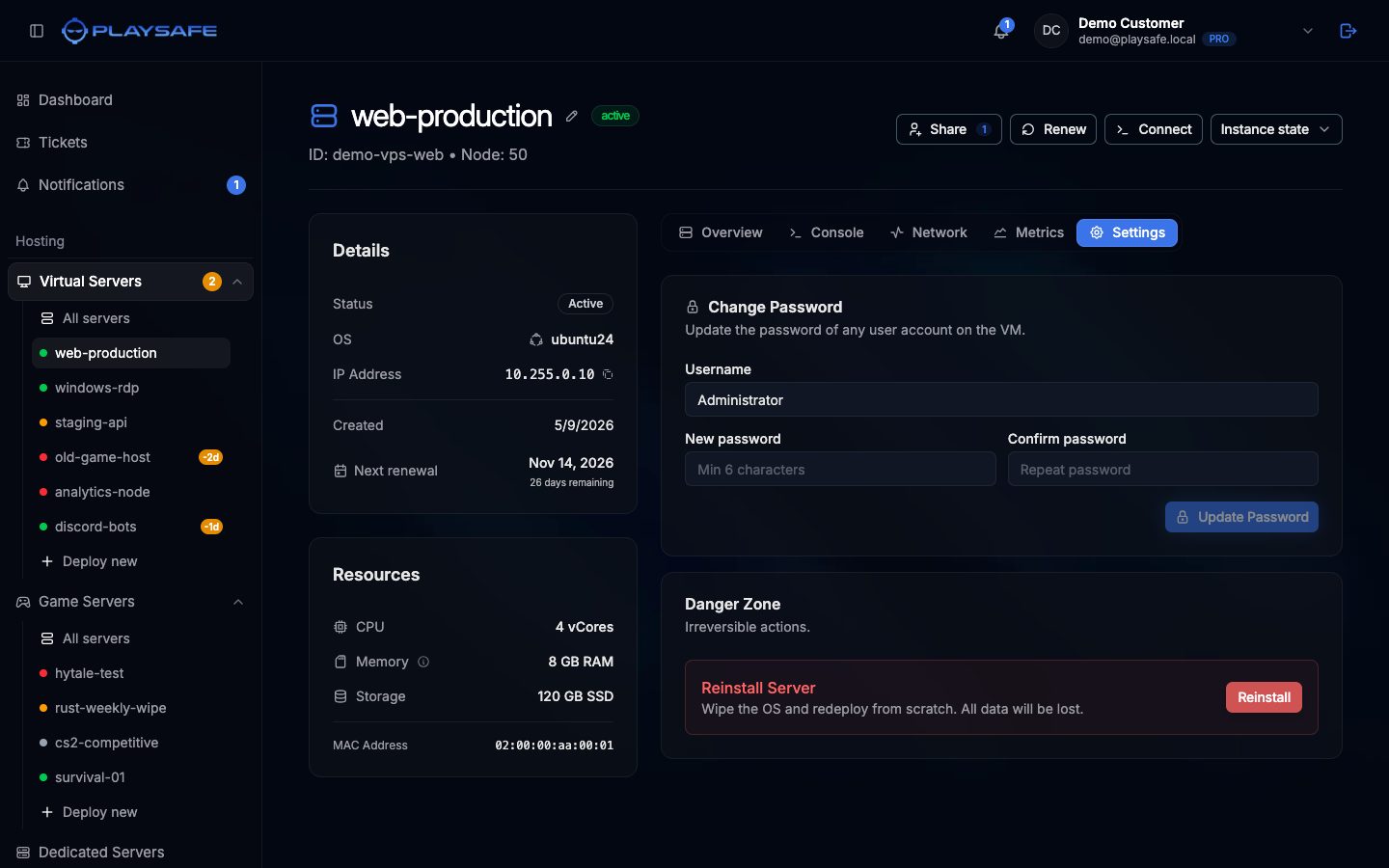
Change Password
Sets a new password for a user account on the server. You do not need to be logged in to the server, so it also works when you have lost the password. Only the owner sees this card.
- In Username, type the account to change. The field starts with
Administrator, which is right for Windows Server. On Linux, replace it withroot(or the name of another user you created). - Type the new password in New password and again in Confirm password.
- Click Update Password.
When it works, the panel shows “Password updated successfully” and Password changed is added to the activity list.
Password rules:
- Between 6 and 127 characters. Use far more than 6: servers on the internet are scanned for weak passwords all the time.
- No line breaks.
- On Linux, no colon (
:). - On Windows, it cannot start with
/.
The server must be running
On Windows, when you change the main Administrator password here, the new password also replaces the one shown in the Console tab. A password changed from inside Windows is not seen by the panel.
Danger Zone: Reinstall
Reinstall Server erases the whole disk and installs a fresh operating system. Only the owner can do it.
- Click Reinstall.
- Pick the system under Operating System: Windows Server 2022, Ubuntu 24.04 LTS, Ubuntu 25.04 or Debian 12.
- Type the server name to confirm.
- Click Reinstall.
The IP address stays the same and a new password is emailed to you. See Reinstall OS for the details.
Reinstalling deletes everything