
Console and Remote Desktop
Open Hosting > Virtual Servers, click your server and open the Console tab, or click Connect in the page header. What you see depends on the operating system.
No browser console yet
Windows Server
The Remote Desktop Connection card shows:
| Field | Value |
|---|---|
| IP Address | The server’s IPv4, with a copy icon |
| Port | 3389 |
| Username | Administrator, with a copy icon |
| Password | Hidden. Click the eye icon to show it and the copy icon to copy it |
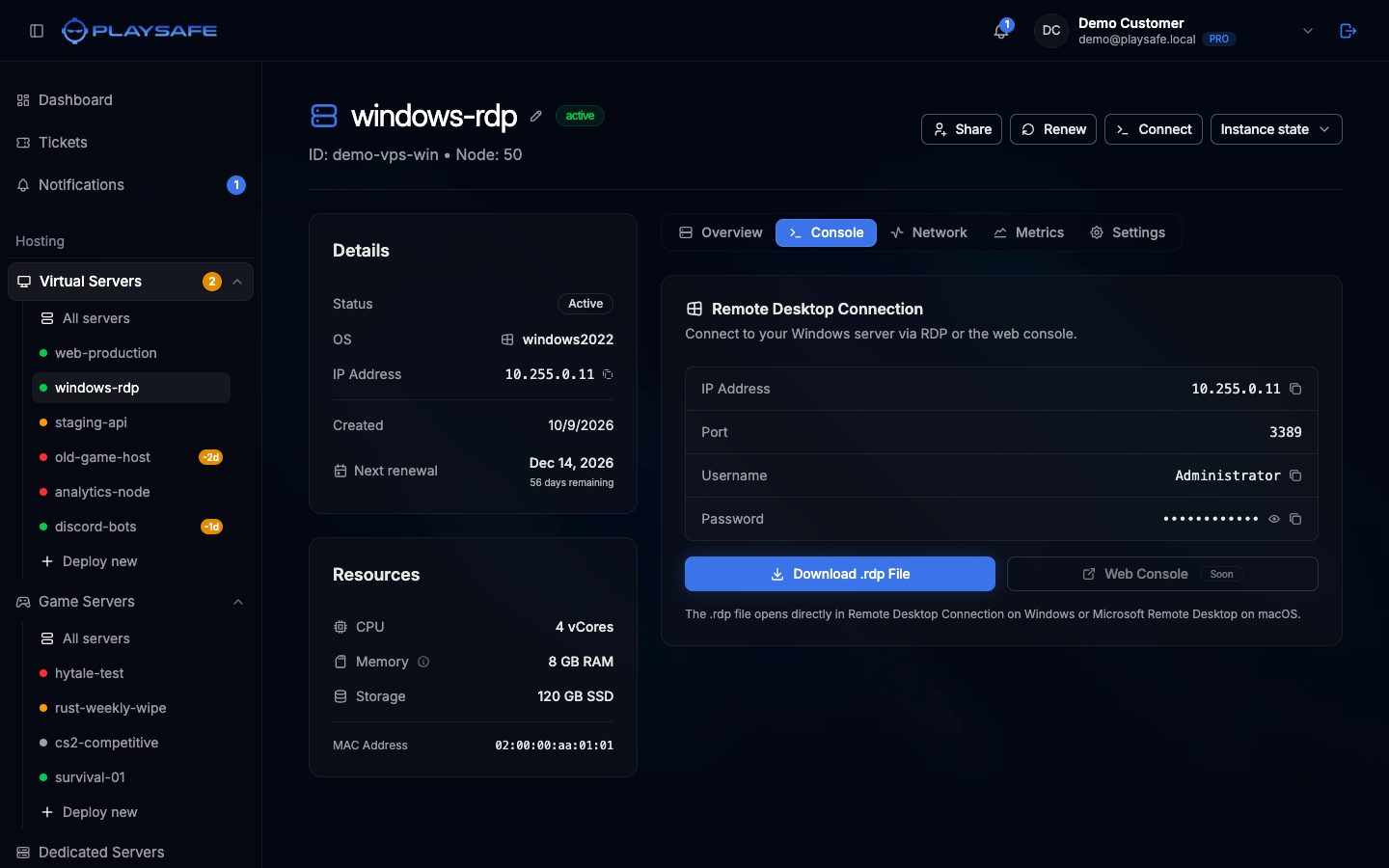
Connect with the .rdp file
- Click Download .rdp File. The file already holds the IP address, port and username.
- Open it:
- Windows: double click it. Remote Desktop Connection opens.
- macOS: open it with Microsoft Remote Desktop (Windows App).
- Linux: import it in Remmina, or connect with
xfreerdp /v:<your-vps-ip> /u:Administrator.
- Enter the password from the Password row.
The password shown is the one the panel knows: the one from deployment or reinstall, or the last one you set for that user from Settings > Change Password. If you change it from inside Windows, the panel keeps showing the old one.
People you share the server with do not see the password; the row shows “Not set. Use Change Password” for them.
Linux
The Web Console card shows the IP Address (with a copy icon) and the Username, root.
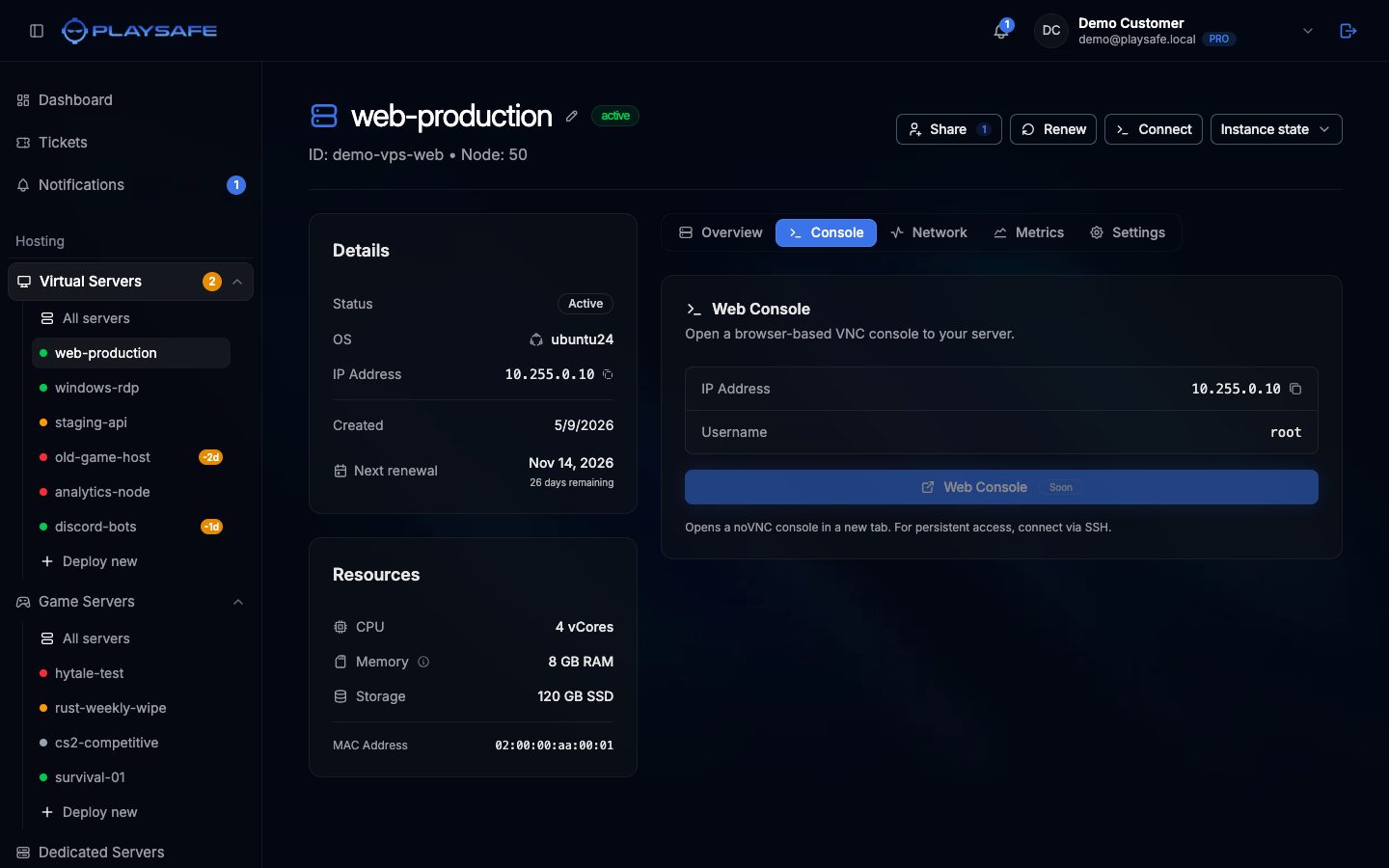
The panel does not show the Linux password. Use the one from the Your Virtual Server is Ready email, or set a new one from Settings > Change Password.
Connect from a terminal:
ssh root@<your-vps-ip>See SSH Access for the full walkthrough.
Quick reference
| System | Username | Port | Client |
|---|---|---|---|
| Windows Server | Administrator | 3389 | Remote Desktop Connection, Microsoft Remote Desktop, Remmina |
| Linux | root | 22 | OpenSSH, PuTTY |