
Server List and Overview Tab
The server list
Open Hosting > Virtual Servers > All servers. Under Your Servers there is one card per server with:
- The name, the server ID and a state badge: Running, Pending, Stopped, Suspended or Failed.
- IP Address (or Not assigned while the server is being set up).
- CPU, RAM and Storage.
- Created and Next renewal. The renewal turns amber in the last 7 days and red once it has passed.
- Shared with, when you shared the server with other users.
Servers other users shared with you appear in a separate Shared With Me section, with Shared by and the owner’s name.
The sidebar also lists each server under Virtual Servers. A small badge such as -2d next to a server, and a number next to Virtual Servers, point out servers close to or past their renewal date.
Click a card, or a server in the sidebar, to open its page.
The server page
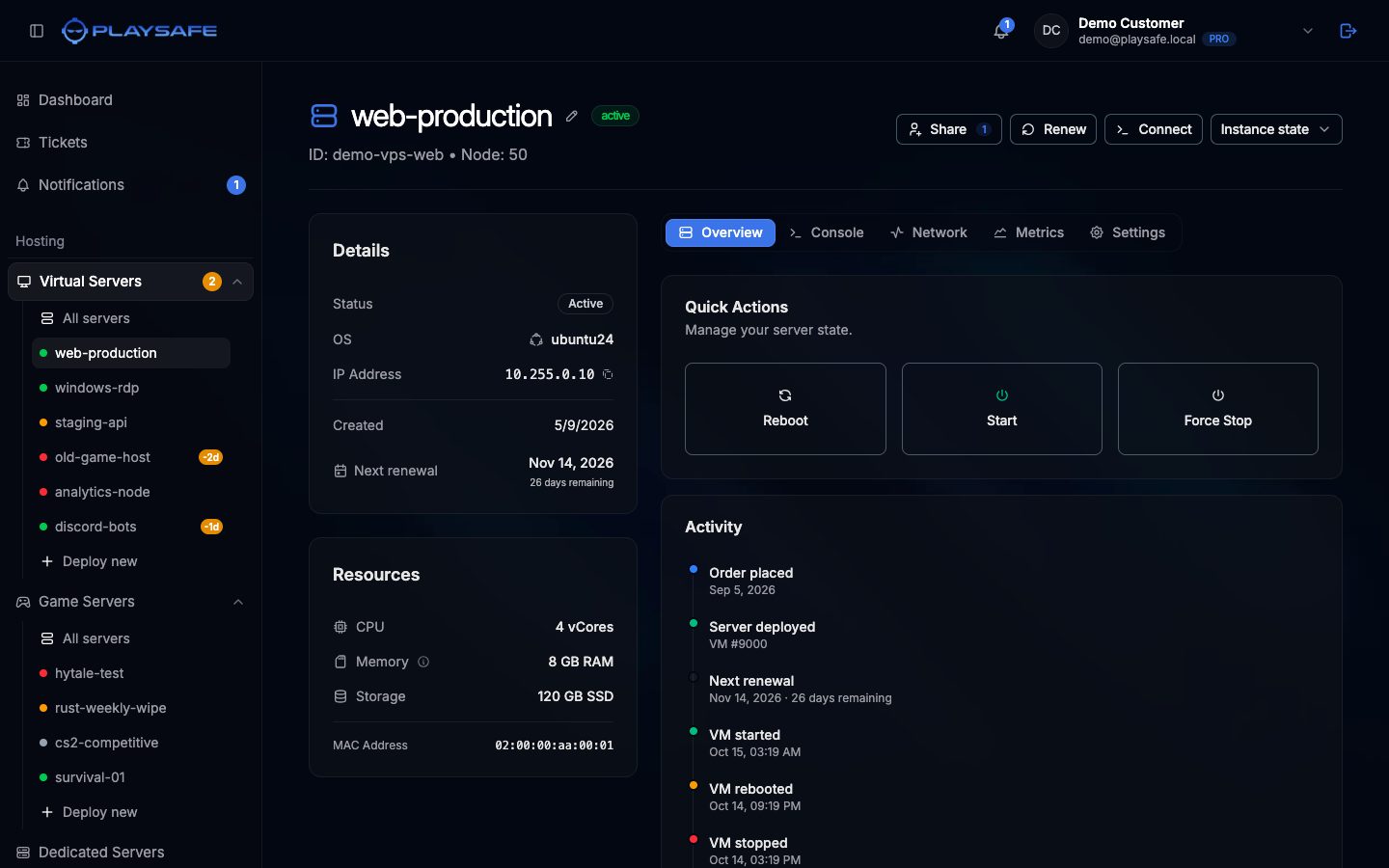
Header
- Name: click the pencil icon to rename the server, press Enter or click Save. Up to 64 characters. The name is only a label in the panel; it does not change anything inside the server. Only the owner can rename.
- State badge:
active,pending,suspended,inactiveorfailed. - Live badge: what the machine is doing right now, for example
runningorstopped, orstarting,stoppingandrebootingwhile an action runs. - ID: the server ID. Include it when you open a ticket.
Header buttons
| Button | What it does |
|---|---|
| Share | Opens Manage Access to share the server with other PlaySafe users. Owner only. See Sharing Access |
| Renew | Creates a renewal order and opens it so you can pay. Owner only, for active and suspended servers. It turns amber in the last 7 days and red once the renewal date has passed. If a renewal order is already waiting, pay that one from Account > Billing |
| Connect | Opens the Console tab |
| Instance state | Menu with Start instance, Reboot instance and Stop instance |
Stop instance asks for confirmation (Stop Instance?) because it forces the machine off, like pulling the plug.
Details and Resources cards
The left column is the same on every tab.
Details: Status, OS, IP Address (with a copy icon), Created and Next renewal with the days remaining.
Resources: CPU (vCores), Memory, Storage and MAC Address. When live data is available a Live label appears and CPU and Memory show the current usage with a bar.
Memory on Linux
Overview tab
Quick Actions
| Button | What it does |
|---|---|
| Reboot | Restarts the server |
| Start | Powers on a stopped server |
| Force Stop | Asks for confirmation, then cuts the power at once. Unsaved data can be lost. Use it only when the server does not respond; otherwise shut it down from inside the operating system |
Activity
A timeline of the server:
- Order placed and Server deployed.
- Next renewal, or Expired when the date has passed.
- Then the actions done from the panel, newest first: VM started, VM stopped, VM rebooted, Password changed, Reinstall started, Server reinstalled with …, Access granted to … and Access revoked from ….