
Quick Start Guide
Every PlaySafe service follows the same path: create an account, deploy the service, pay the order, and start using it.
Step 1: Create your account
- Go to playsafe.host/register.
- Fill in First name, Last name, Email, Password and Repeat password. The password needs at least 8 characters.
- Tick the box to accept the Terms of Service and the Privacy Policy, complete the captcha and click Sign up.
You can also click Continue with Discord to sign up with your Discord account.
Step 2: Verify your email
After signing up you see Check your inbox: PlaySafe sends a verification link to your email. The link expires after 24 hours.
Until you confirm it, a yellow banner at the top of the panel reminds you, and deploying services, opening tickets, sharing access and the affiliate program stay locked. If the email did not arrive, click Resend email in that banner. If the address is wrong, change it in Account > Account, in the Profile section.
Signed up with Discord?
Step 3: Deploy a service
Pick the path that matches what you need.
Virtual server
- In the sidebar, open Hosting > Virtual Servers > Deploy new.
- Under Choose a plan, pick a family (General purpose, Professional or FiveM) and a plan.
- Under Location, choose where the server runs.
- Under Operating system, choose the system. FiveM plans use Windows Server 2022.
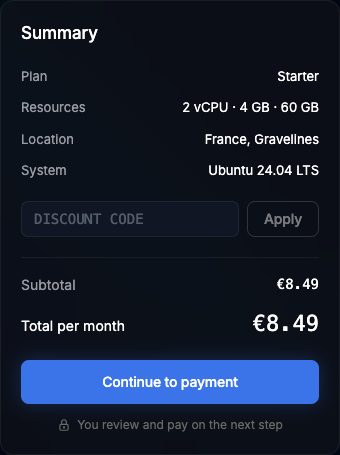
- If you have a discount code, enter it in the Summary box and click Apply.
- Click Continue to payment.
Game server
- Open Hosting > Game Servers > Deploy new.
- Choose the Game, the Plan and, when there is more than one, the Server type.
- Under Settings, give the server a name and fill in any options the server type asks for.
- Check the Location, add a discount code if you have one, and click Continue to payment.
Game protection
- Open Security > Game protection > Deploy new.
- Choose the Game (FiveM, RedM, Rust or Minecraft) and a Plan.
- Enter a Firewall name. For FiveM and RedM, also choose a Server connect name: your players will be able to connect to
your-name-svr.playsafe.dev. - Under Backend IP, enter the public IPv4 address of the server you want to protect.
- Click Go to checkout.
Dedicated server
Dedicated servers are not paid through checkout. Open Hosting > Dedicated Servers, fill in Request a quote and click Send to sales. The sales team answers in a ticket.
Step 4: Pay the order
Deploying creates an order and takes you straight to its page.
- Check the summary and click Pay (the button shows the amount).
- You are sent to the secure Stripe checkout. Pay with a credit or debit card.
- Stripe brings you back to the order page, which now shows Paid.
The service is set up automatically after the payment. You get an email when it is ready, and it appears in the sidebar under its section.
Unpaid orders are cancelled
More about payments: Payment Methods.
Step 5: Start using it
- Virtual server: open it from Hosting > Virtual Servers and click Connect. The Console tab shows the IP address, the username and the password. See SSH access.
- Game server: open it from Hosting > Game Servers. See the game server panel.
- Game protection: the Protected IP column of Security > Game protection > All protections shows the address your players connect to.
After the first service
- Turn on attack notifications: Security > Attacks, Notifications tab, to get an email or a Discord webhook message when an attack starts.
- Review your firewall: virtual servers have their firewall under Security > Firewalls.
- Keep an eye on renewals: services run for 30 days per payment. See Renewals.
Need help?
Open a ticket from Tickets > Create new ticket, or join the community from Help > Discord.