
Mods & Plugins
The Mods tab is a Modrinth browser inside the panel. You search plugins (Paper, Purpur, Purpur + GeyserMC) or mods (Fabric, Forge), pick a version and install it on the server without uploading files yourself.
To open it, go to Hosting > Game Servers > your server and click the Mods tab. It is shown on Paper, Purpur, Purpur + GeyserMC, Fabric and Forge. Vanilla Minecraft, Velocity and Waterfall do not have it.
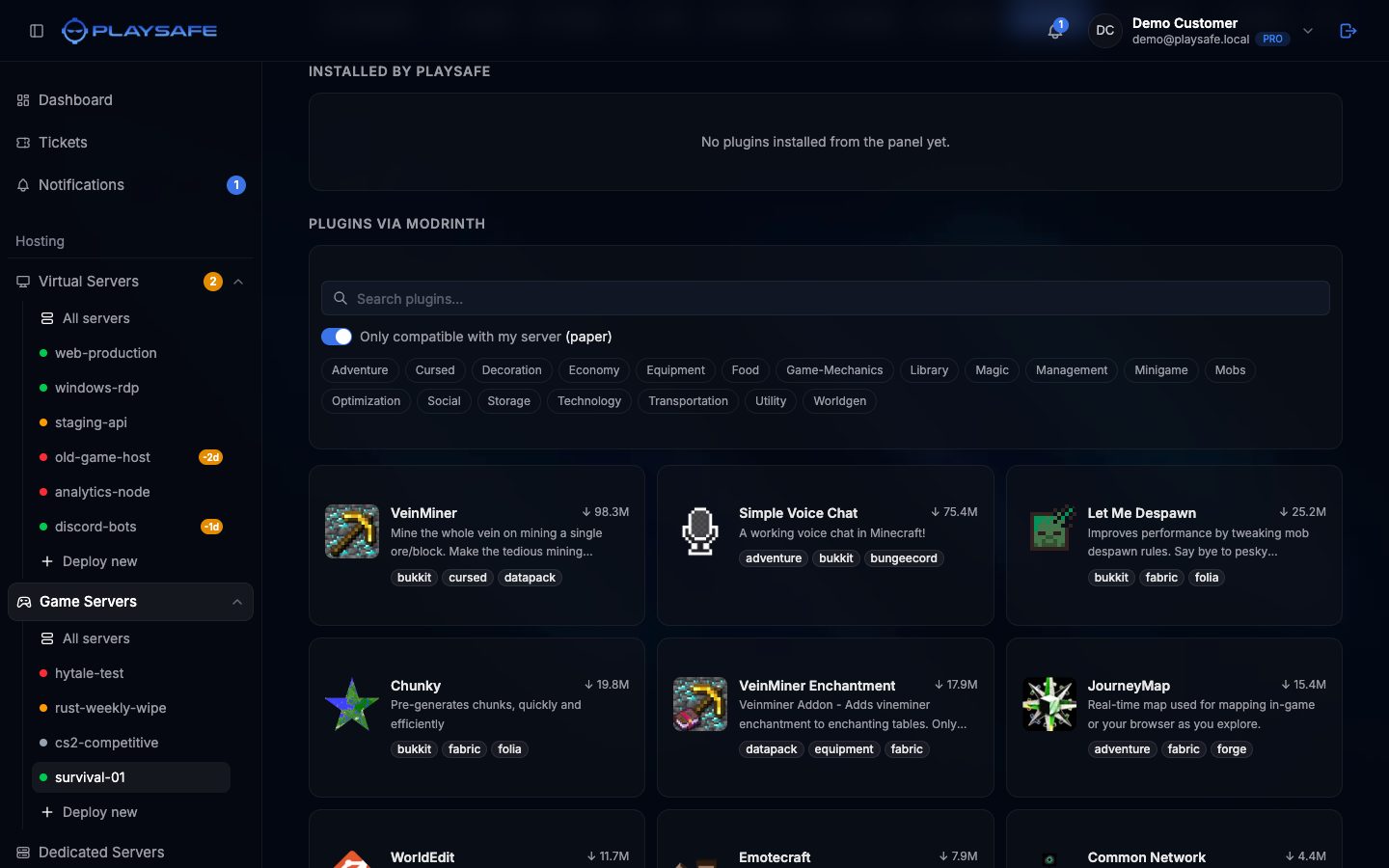
Install a plugin or mod
- Under Plugins via Modrinth (or Mods via Modrinth on Fabric and Forge), type in the search box. Results update as you type.
- Optionally click category chips (Optimization, Utility, …) to narrow the results. Clear removes them.
- Click a result card. A side sheet opens with the project’s name, author, categories and a link to Modrinth.
- Open the Versions tab of the sheet. The version that fits your server is marked Recommended; versions that do not fit are marked Incompatible.
- Select a version and click Install at the bottom of the sheet.
- When the message says the plugin was installed, restart the server with Restart in the server header so it loads.
Plugins go into plugins/ and mods into mods/.
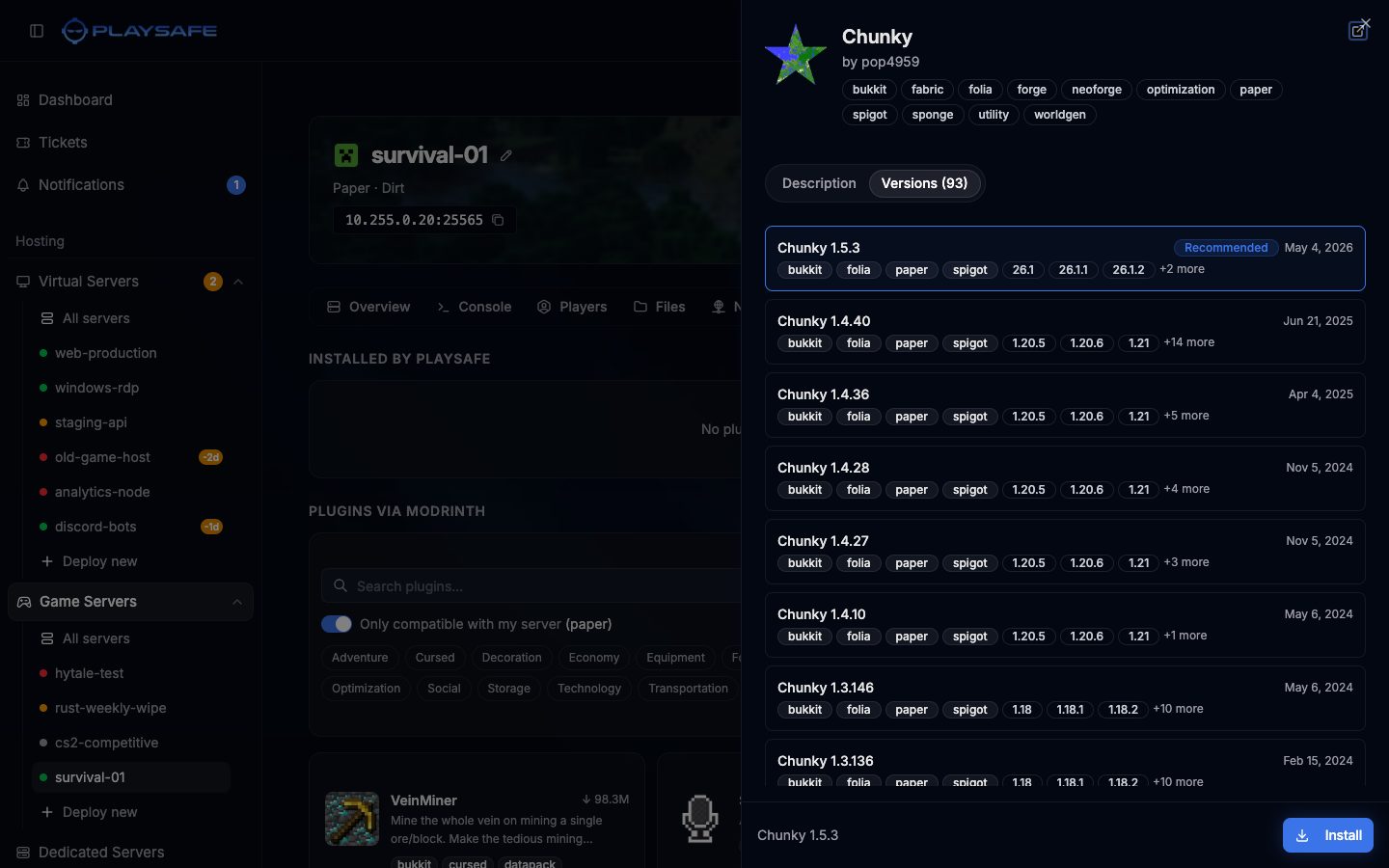
The Install button stays disabled for incompatible versions. The server also refuses a version made for another loader or another Minecraft version, and files over 50 MB.
Compatibility filter
The switch Only compatible with my server is on by default. It shows the loader of your server in brackets (for example paper) and only lists projects for it.
Turn it off to browse freely. Two dropdowns appear: Loader and MC version (any, or a specific version). Even with the filter off, you can only install versions that fit your server.
Results come 20 at a time. Click Load more at the bottom to see the next ones.
Installed by PlaySafe
The top section lists what you installed from this tab, with the project icon, name, file name and install date. Files you uploaded yourself through Files or SFTP do not appear here.
Each row has three icons:
| Icon | What it does |
|---|---|
| External link | Opens the project on Modrinth. |
| Change version (arrows) | Opens a dialog with every version of the project. Pick one and click Apply to replace the installed file. |
| Trash | Uninstalls the file from the server right away, without confirmation. |
Restart the server after any install, version change or uninstall.
Mod conflicts