
Security Reports
A security report is a scheduled summary of every attack in a period: how many, how big, which vectors and where they came from. It goes to an email address, a Discord channel, or both.
Open the page from the sidebar: Security > Reports. You can also reach it from Security > Attacks > Notifications, card Security reports.
Create a report
Click New report (top right), or Create your first report if you have none yet. The New security report dialog has four steps, with a live Preview on the right that you can switch between Email and Discord.
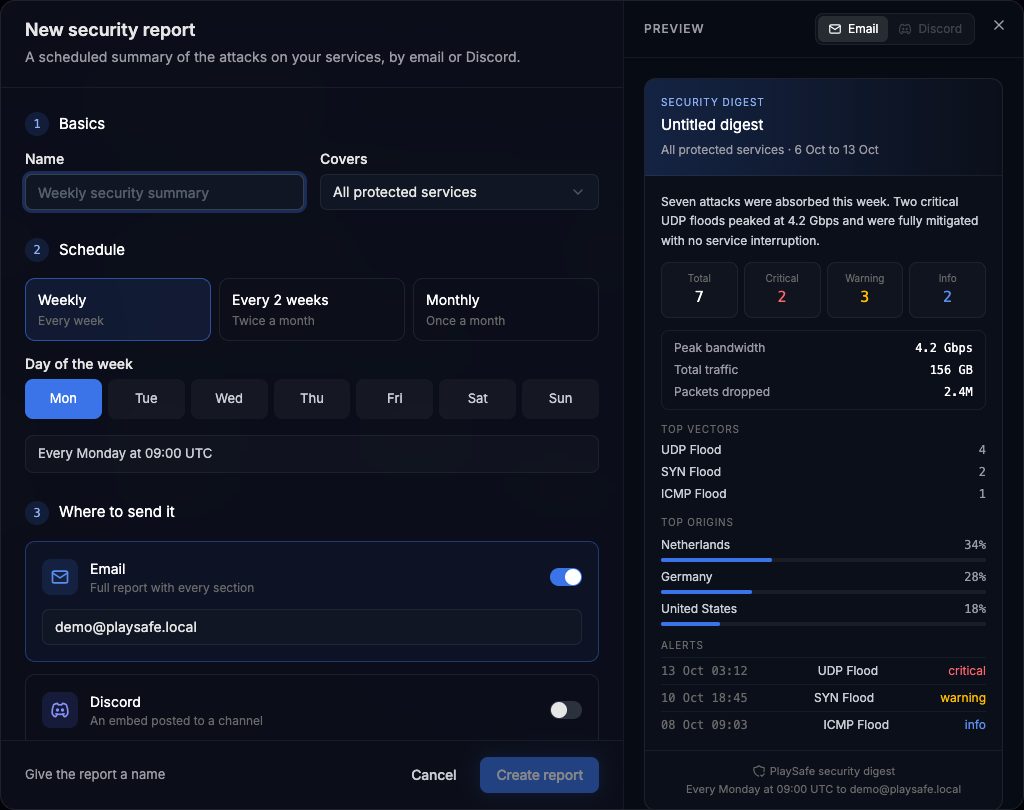
1. Basics
- Name: for example
Weekly security summary(up to 100 characters). - Covers: All protected services, or one firewall or game protection.
2. Schedule
- Weekly, Every 2 weeks or Monthly.
- Day of the week (Mon to Sun) for weekly and every 2 weeks, or Day of the month (1 to 28) for monthly. Days 29 to 31 are left out so every month gets a report.
Reports are always sent at 09:00 UTC. The sentence under the days confirms the schedule, for example Every Monday at 09:00 UTC.
3. Where to send it
- Email: on by default with your account email. You can type another address.
- Discord: switch it on and paste a webhook URL that starts with
https://discord.com/api/webhooks/.
At least one channel must be on.
4. What to include
The attack count by severity is always included. Tick or untick:
| Section | What it adds |
|---|---|
| Written summary | A short text about the period, generated automatically |
| Traffic statistics | Peak bandwidth, total traffic and packets dropped |
| Top attack vectors | The most frequent attack types |
| Top origins | Countries the attacks came from |
| Alert list | Every alert in the period (email only) |
Click Create report. The footer of the dialog tells you what is missing while the button is disabled.
Your reports
Each report is a card with its name, schedule, what it covers, its channels, the sections it includes, Next send and Last sent. A line at the top of the page tells you which report goes out next.
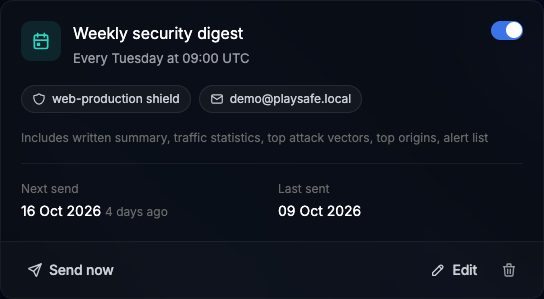
| Control | What it does |
|---|---|
| Switch (top right) | Pauses or resumes the report. A paused report shows Paused as next send |
| Send now | Sends the report right away to its channels without changing the schedule. The button then reads Sent for a minute |
| Edit | Opens the same dialog with the current values |
| Trash icon | Asks Delete this report? and stops it. Reports already delivered are not affected |
Use a private Discord channel