
Backups
The Backups tab keeps snapshots of your server’s files. Take one before updating the game, installing mods or making big changes, and restore it if something goes wrong. Open it from Hosting > Game Servers > your server > Backups.
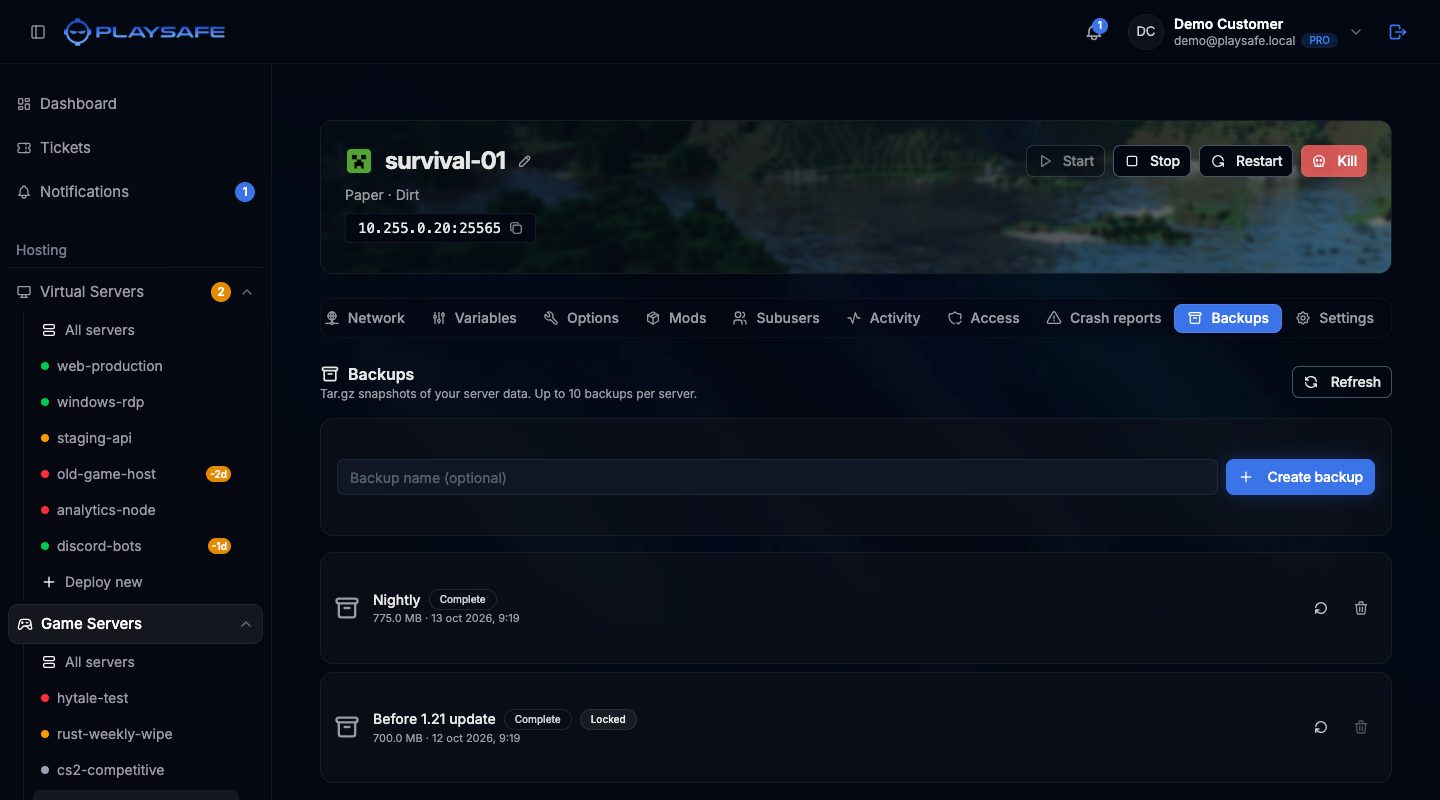
Each server can keep up to 10 backups. Backups are only created when you ask for one; there are no automatic backups.
Create a backup
- Optionally type a name in Backup name (optional), for example “Before 1.21 update”.
- Click Create backup (or press Enter).
- The backup appears at the top of the list with an In progress badge. Click Refresh after a while: it shows Complete with its size and date when it is done.
Create backup is disabled once you have 10 backups. Delete an old one first.
Restore a backup
- Click the circular arrow on the right of a Complete backup.
- Read the warning: the server stops while the backup is unpacked, and files newer than the backup are lost unless you copy them first.
- Tick Wipe the server data directory first if you want the server folder to contain exactly what the backup has, with nothing left over from now. Leave it unticked to unpack the backup over the current files.
- Click Restore.
When the restore has finished, start the server again with the Start button in the header.
Delete a backup
Click the trash button on the right of the backup. It is deleted at once, without a confirmation step. Backups with a Locked badge cannot be deleted.
Who can use it
Only the server owner. Backup permissions are not offered when inviting subusers. Backups cannot be downloaded from the panel.