
The Firewall Page
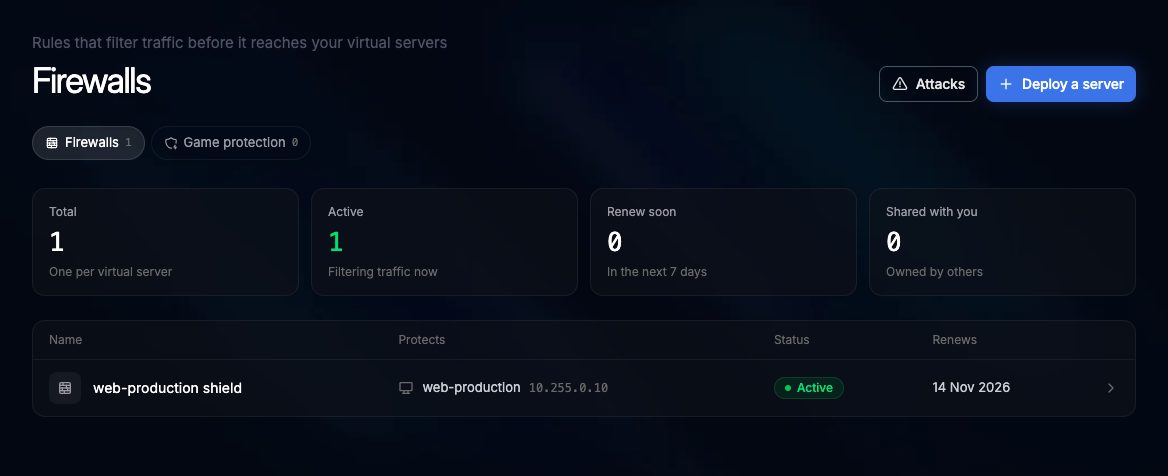
Firewalls and game protections open on the same kind of page. To get there:
- Security > Firewalls, then click the firewall in the list (or its name under Firewalls in the sidebar)
- Security > Game protection, then click the protection (or its name under Game protection in the sidebar)
The list
Security > Firewalls and Security > Game protection are the same page with two filters at the top. Each shows four counters (Total, Active, Renew soon in the next 7 days, Shared with you) and a table:
| Firewalls | Game protection |
|---|---|
| Name, Protects (the virtual server and its IP), Status, Renews | Name, Game, Protected IP, Backend, Status, Renews |
When a renewal date is 7 days away or less, the Renews column adds a note such as In 3d or Expired 2d ago. Firewalls shared with you by someone else show Shared by and the owner’s name.
Header
The top of the page shows:
- The name, with a pencil icon to rename it (owners only; press Enter or Save)
- The status: Active, Pending (waiting for payment or being set up), Suspended (expired and not renewed yet) or Inactive (ended)
- The ID, the Backend IP (blurred, click the eye icon to show it), the player connect address for FiveM and RedM, and when it was last updated
Buttons on the right:
| Button | What it does |
|---|---|
| Renew | Game protection only. Creates a renewal order and takes you to it in Account > Billing. It turns amber when the protection expires within 7 days or has expired |
| Share | Opens Manage Access to give another PlaySafe user access. See Sharing |
| Refresh icon | Reloads the firewall and its rules |
| … (more actions) | Export config, Import config and Purge all rules |
- Export config downloads a JSON file (
playsafe-fw-<id>.json) with the firewall’s rules. - Import config adds the rules of such a file to this firewall. Locked rules in the file are skipped.
- Purge all rules deletes every rule that is not locked. Type
PURGEin the dialog and click Purge All Rules. It cannot be undone, so export first.
Import and purge only work on virtual server firewalls. Rename, renew and share are hidden on firewalls that others share with you.
There is no delete button. A virtual server’s firewall goes away with the server. A game protection ends when it is not renewed (see Renewal below).
Overview tab
Summary strip
Four boxes: Status, Protection (Edge firewall) or Game (the protected game), Backend IP (blurred, with an eye icon), and Renews (date plus days left, or Pending activation before the first payment).
Player connect address (FiveM and RedM)
The address players use, the connect ... command, and a Copy connect button.
Installation Guide (game protection)
A collapsible card with the steps for your game: the server.cfg block for FiveM and RedM (hidden until you click the eye icon and confirm), the startup options and protected IP for Rust, and the server.properties lines and protected IP for Minecraft.
Network traffic (virtual server firewalls)
A live chart of Inbound and Outbound traffic of the protected server for the last hour, refreshed every 2 seconds, with last, average and max values. Until the server has sent and received traffic it reads No traffic data yet. On game protections the chart stays empty.
Quick actions
On FiveM and RedM protections this card has Add an admin (txAdmin access) and Add a developer (RDP access). The rules of a game protection are managed by PlaySafe, so to give your staff access open a ticket with their IPs. To always allow or always block single addresses on a virtual server firewall, use the IP Lists tab.
Other tabs
| Tab | What it is for | Page |
|---|---|---|
| Rules | Every rule of the firewall, with its order, and Add Rule | Rules |
| Geo Filter | Block countries or allow only some | Geo Filter |
| IP Lists | Addresses that are always allowed or always blocked | IP Lists |
| Protections | Ready-made protections you switch on and off | Protections |
Changing rules, countries, IP lists and protections works on virtual server firewalls, and only for the owner. On a game protection these tabs show what is applied; changes are made by PlaySafe through a ticket.
Renewal
Virtual server firewalls renew together with their server. Nothing to do here.
Game protection lasts 30 days per payment:
- Seven days before it ends, a renewal order appears in Account > Billing. You can also click Renew at any time while the protection is Active or Suspended.
- If it is not paid by the end date, the protection becomes Suspended and you get a notification.
- Three days later it becomes Inactive and the pending renewal order is cancelled.
Renew before the end date