
Deploying a Game Server
Everything happens on one page: you pick a game, a plan, a server type and a name, check the summary on the right and continue to payment. The server is set up a few minutes after the order is paid.
Open the deploy page
Use any of these:
- Hosting > Game Servers > Deploy new in the sidebar.
- The Deploy new server button on Hosting > Game Servers > All servers.
Step by step
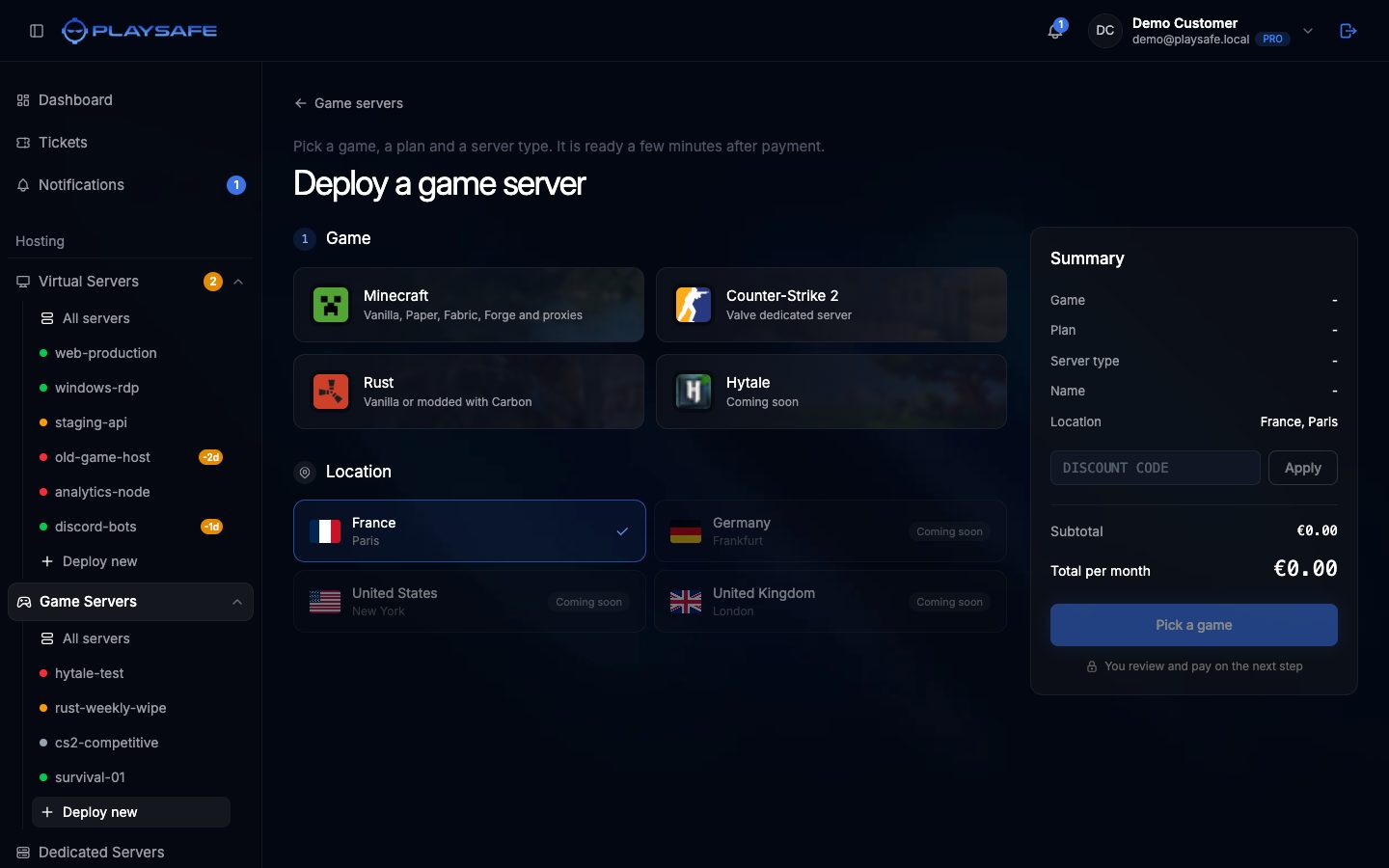
- Under 1 Game, click the game you want: Minecraft, Counter-Strike 2, Rust or Hytale. A game with a Coming soon badge cannot be picked yet.
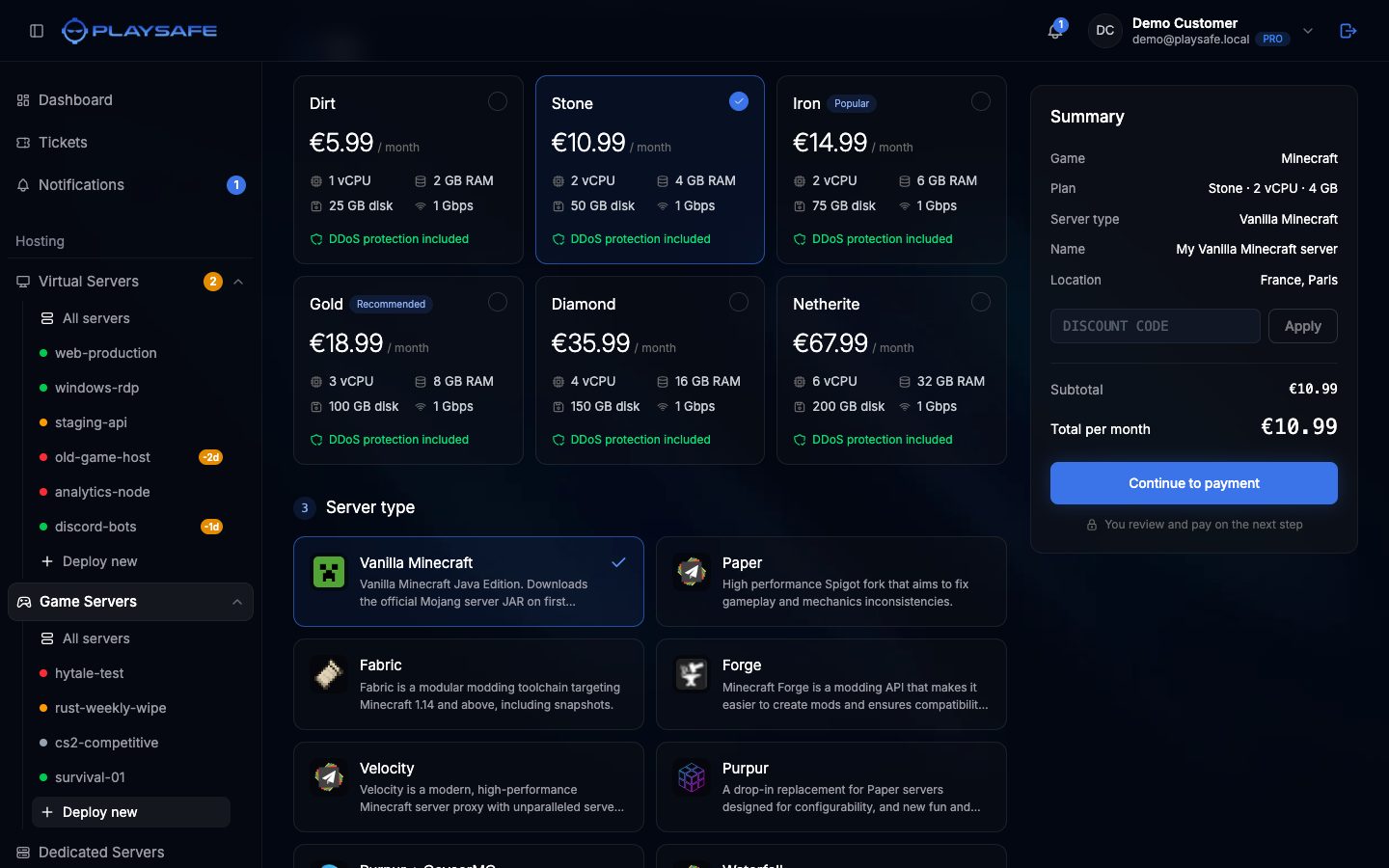
- Under 2 Plan, click a plan. Each card shows the monthly price, vCPU, GB RAM, GB disk and bandwidth, and every plan includes DDoS protection. Some plans carry a tag such as Popular or Recommended.
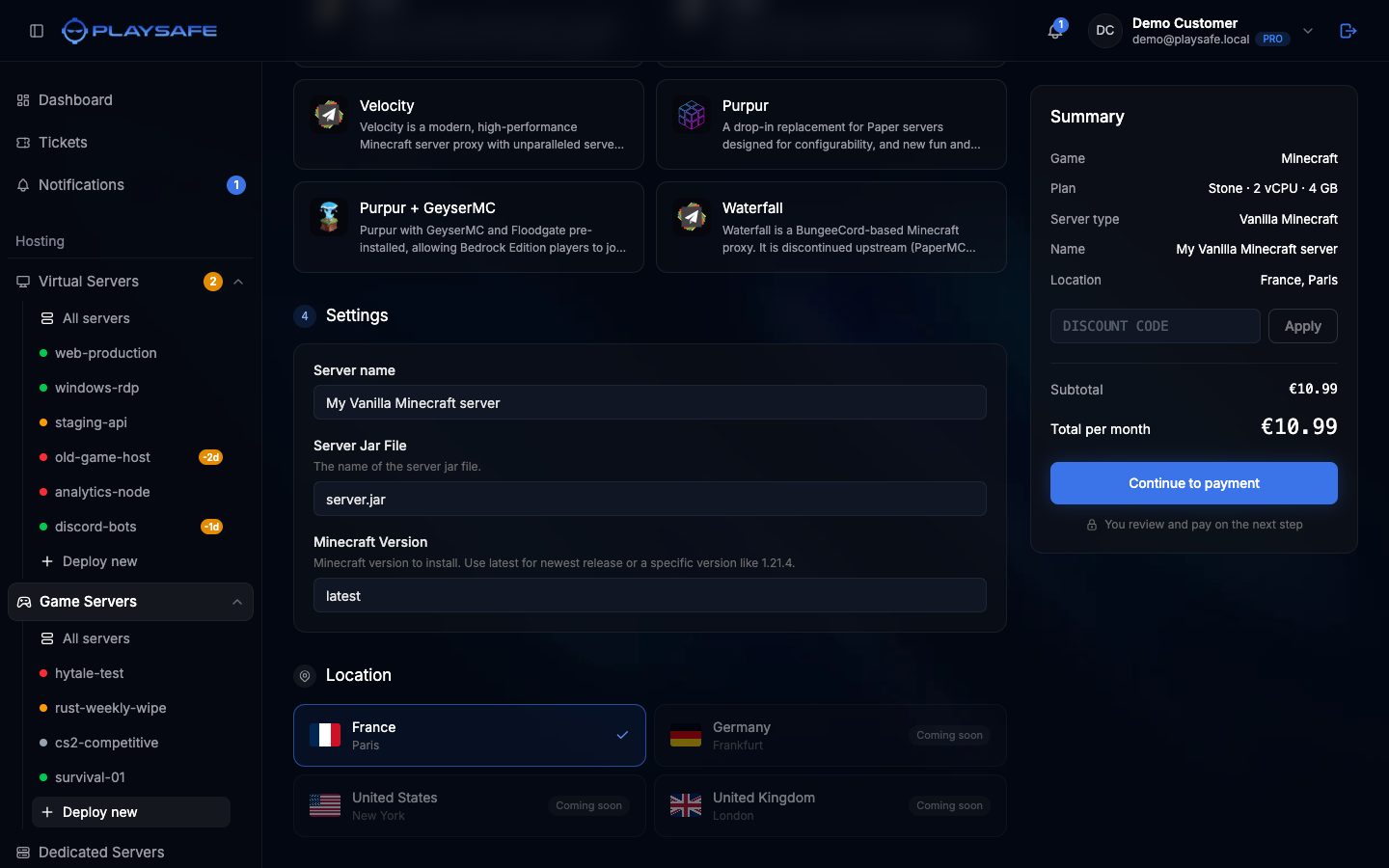
- Under 3 Server type, click the software you want to run (for Minecraft: Vanilla Minecraft, Paper, Purpur, Fabric, Forge, Velocity, Waterfall and others). If the plan only has one server type for that game, it is picked for you and this step is skipped.
- Under Settings, type a Server name (up to 150 characters; it is filled in as “My <server type> server”). Below it you see the startup settings of the server type you picked, for example the Minecraft version. You can leave the defaults and change them later in the Variables tab.
- Under Location, keep France, Paris. The other locations are marked Coming soon.
- In the Summary box on the right, check the game, plan, server type, name and location. If you have a discount code, type it in Discount code and click Apply: the box shows ”% off applied” or “That code is not valid”.
- Click Continue to payment. While something is missing, the button tells you what (for example Pick a plan or Name your server).
ℹ
Verified email
Deploying needs a verified email address. If yours is not verified yet, use the link in the verification email first.
Pay the order
Continue to payment creates the order and takes you to its page in Account > Billing. Click Pay to complete the payment with Stripe. Nothing is charged until you pay there.
If you change your mind before paying, cancel the order from the same page, or open the server and use Settings > Cancel order.
After payment
The server appears in Hosting > Game Servers > All servers straight away:
- Pending while the order is processed and a slot is reserved for your server.
- Installing while the game files are downloaded and set up.
- Stopped (or Running) once the installation has finished. The card now shows the Endpoint your players connect to.
Open the server and press Start if it is not running yet. See Server page for the power buttons.
!
Failed installs
If setup fails, the card shows **Failed** and the Overview tab shows a **Provisioning failed** card with the reason. Open a ticket from **Tickets** with the server name, or cancel it from **Settings > Cancel order** and deploy again.