
Panel Overview
The PlaySafe panel is where you order, pay for and manage every service. Open it at playsafe.host/panel and log in.
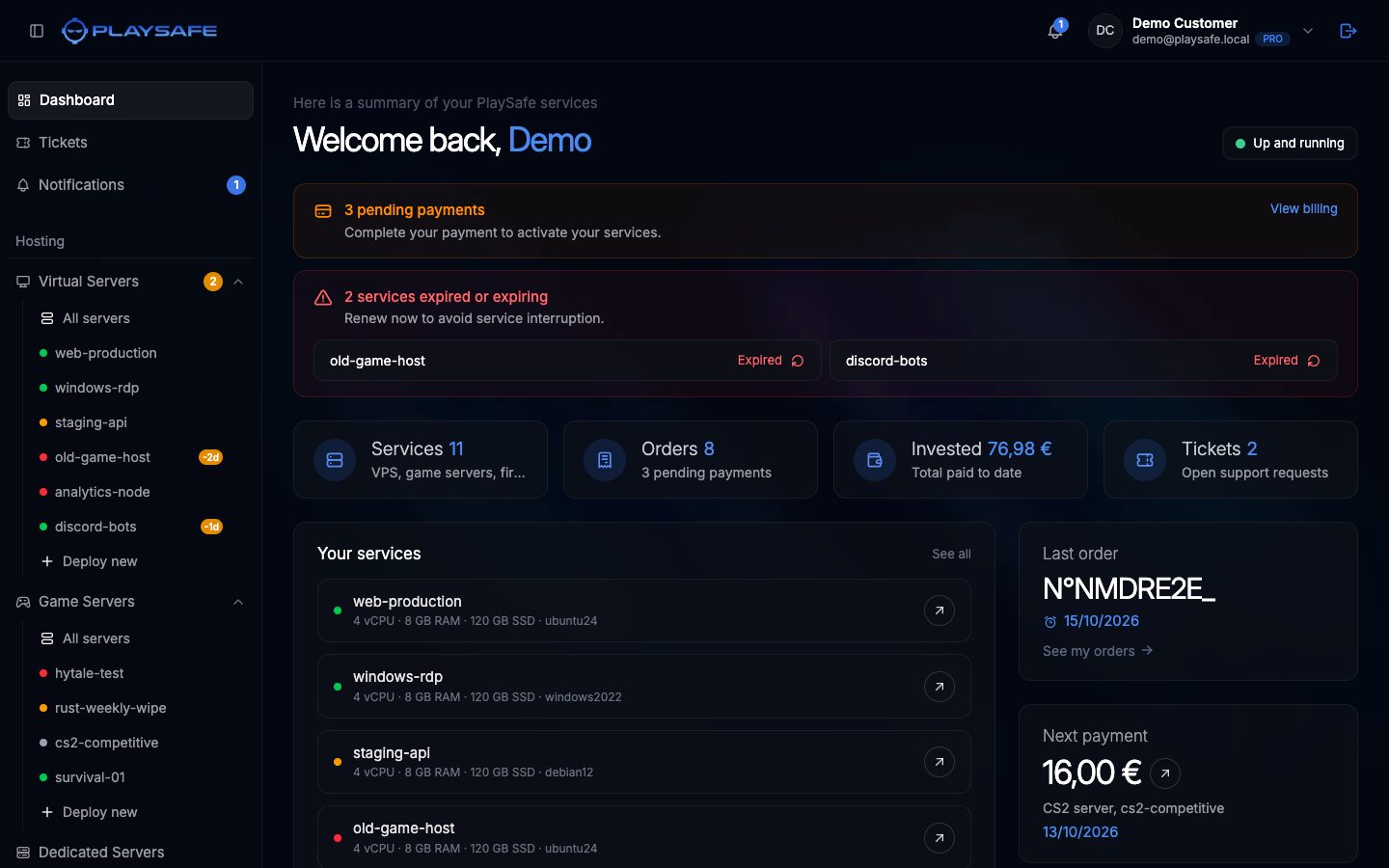
The sidebar
Everything in the panel is reached from the sidebar. On a phone, open it with the button at the top left.
| Section | Item | What you find there |
|---|---|---|
| Dashboard | The summary of your account | |
| Tickets | Your support tickets and the form to open a new one | |
| Notifications | Everything PlaySafe has told you: payments, attacks, tickets, services | |
| Hosting | Virtual Servers | All servers, each of your servers, and Deploy new |
| Hosting | Game Servers | All servers, each of your servers, and Deploy new |
| Hosting | Dedicated Servers | The form to request a quote for a dedicated server |
| Security | Firewalls | All firewalls: the edge firewall of each virtual server |
| Security | Game protection | All protections, each protection, and Deploy new |
| Security | Attacks | Every attack detected on your services, and the attack notification settings |
| Security | Reports | Scheduled attack summaries |
| Account | Billing | Your orders and payments |
| Account | Affiliate | The affiliate program |
| Account | Account | Your profile, password and connected accounts |
| Help | Docs | Links to this documentation |
| Help | Discord | The PlaySafe Discord community |
Small badges next to an item tell you something needs attention: unread notifications, tickets waiting for your reply, unpaid orders on Billing, and services close to their renewal date on Virtual Servers and Game protection.
In these docs, a path like Hosting > Virtual Servers > Deploy new means: open that group in the sidebar and click that item.
The top bar
- Bell: opens Notifications. The number is how many you have not read.
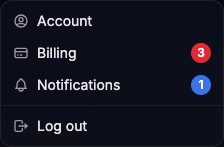
- Your name: opens a menu with Account, Billing, Notifications and Log out.
- Log out icon at the far right: signs you out.
Dashboard
The dashboard (Dashboard in the sidebar) shows:
- Notices at the top when something needs you: unpaid orders (View billing), virtual servers and game protections that expire within 5 days or already expired (each one links to the service, where you can renew it), tickets waiting for your reply, and degraded platform status.
- Four counters: Services, Orders, Invested (total paid) and Tickets (open requests). Each one links to its page.
- Your services: every virtual server, game server and firewall with its status. Click one to open it.
- Latest news: announcements from the PlaySafe team.
- Last order, Next payment (your oldest unpaid order) or Next renewal, your latest Support tickets, the Platform status, and a link to Discord.
Account
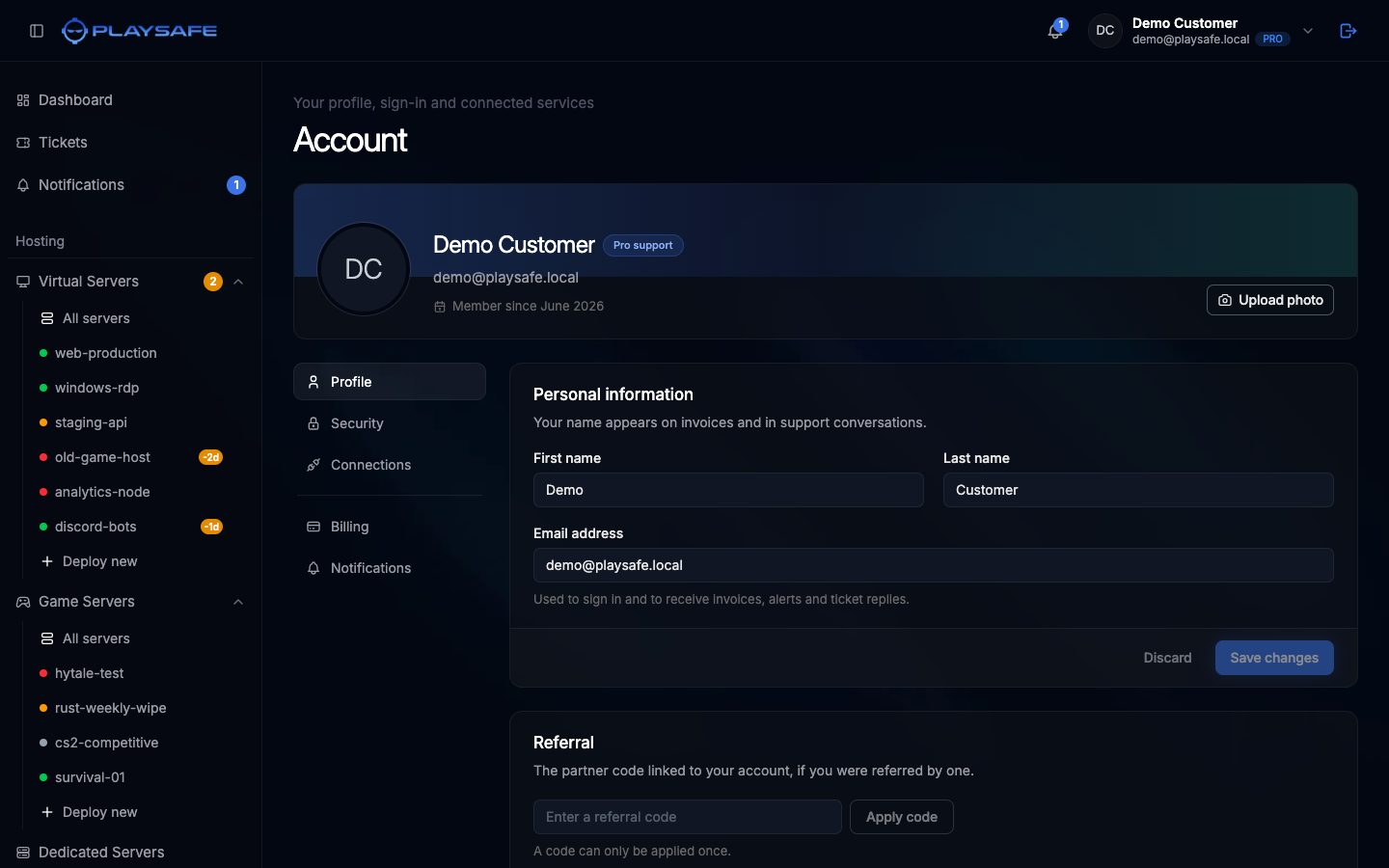
Open Account > Account in the sidebar, or Account in the menu under your name. At the top you can upload a profile photo with Upload photo (PNG, JPG, WEBP or GIF, up to 2 MB). The page has three sections:
- Profile: your first name, last name and email address (Save changes), and the Referral box to add the code of the partner who referred you. A referral code can only be applied once.
- Security: Change password (you need your current password, the new one needs at least 8 characters), the list of sign-in methods, and Sign out.
- Connections: Link Discord to sign in with Discord. When it is linked you can Refresh your Discord name and picture or Unlink it.
Changing your email asks for confirmation, and you sign in with the new address from then on. If you only sign in with Discord, set a password first with Set a password in Security before you unlink Discord.
Notifications
Notifications (in the sidebar, or the bell) lists everything PlaySafe has sent you, grouped by day. Filter them with All, Unread, Alerts, Services, Billing, Tickets, Affiliate and Account. Click a notification to open the page it refers to, or use Mark all as read.
This page is a history, not a settings page. Attack notifications by email and Discord are set up in Security > Attacks, Notifications tab.
Tickets
Tickets shows your requests in four tabs (Open, In Progress, Resolved, Closed) and the Create New Ticket form.
To open a ticket:
- Click Create new ticket (top right) or scroll to the form.
- Fill in Title, choose a Category (General, Technical, Billing or Other) and a Priority (Low, Medium or High), and write a Description.
- Click Create ticket.
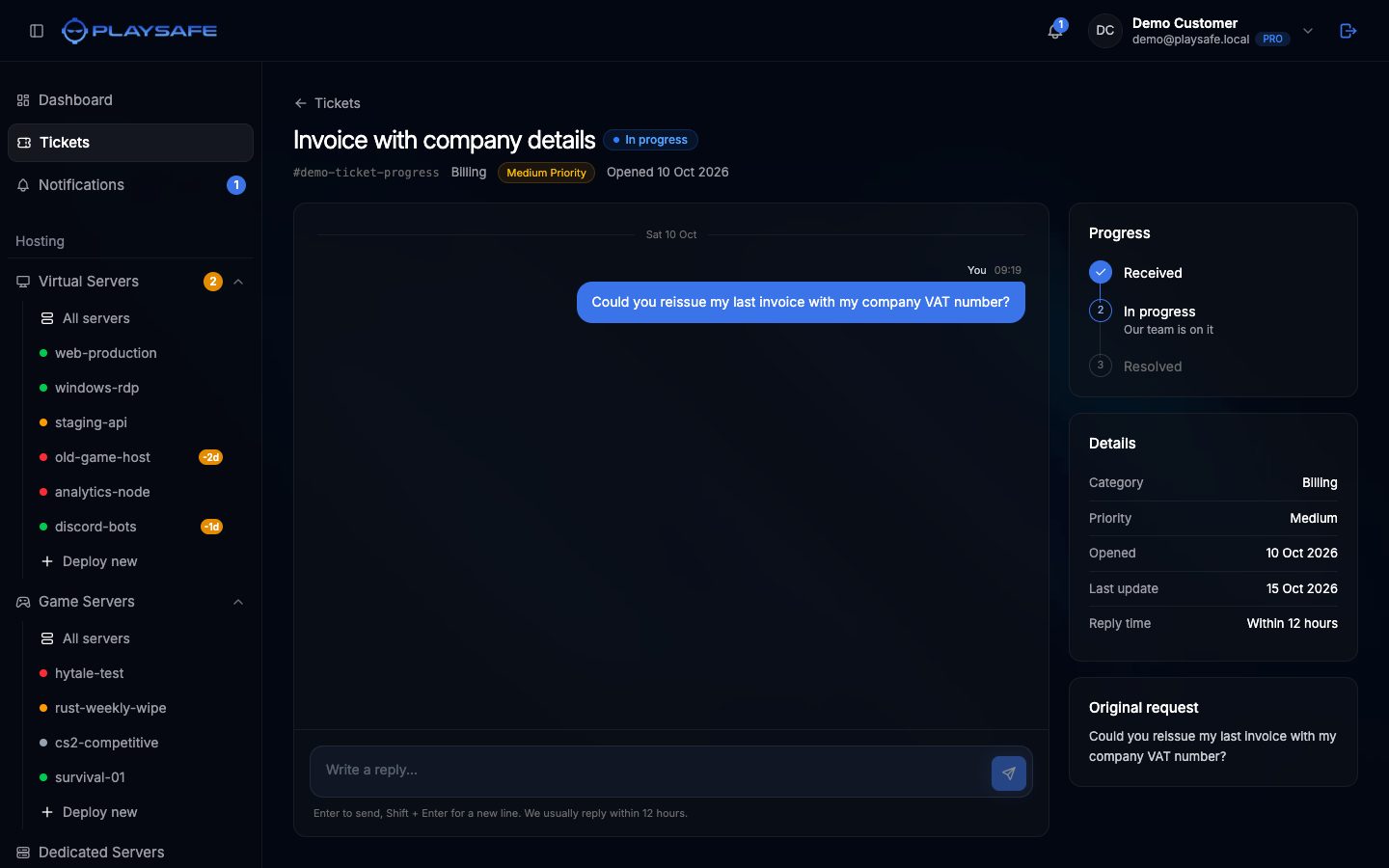
Click a ticket to open the conversation. Write in Write a reply… and press Enter to send (Shift + Enter for a new line). The right side shows the ticket’s progress, its details and the usual reply time for your support level. Resolved and closed tickets cannot be answered; open a new one instead.
At the bottom of Tickets, Your support plan shows your support level (Basic, Advanced or Enterprise). It is set automatically from the plans of your active services. See Plans and Pricing.
Billing
Account > Billing lists your orders, what is waiting for payment, and the history of everything you paid. See Invoices and Billing History.
Affiliate
Account > Affiliate is the affiliate program. Click Activate affiliate account and accept the terms to get your referral code and link. Once active, the page shows your clicks, conversions, commission tier, balance and payouts, and Request payout when your balance reaches the minimum.
Help
- Docs links to this documentation.
- Discord shows the PlaySafe Discord server. Use the Join button in the widget to enter it.