
Access Lists
The Access tab edits the four Minecraft access lists: who may join, who is an operator, and which players and IPs are banned. It writes the files Minecraft uses (whitelist.json, ops.json, banned-players.json, banned-ips.json) directly, so it works while the server is stopped too.
To open it, go to Hosting > Game Servers > your server and click the Access tab (after Activity in the tab bar). It is not shown on Velocity and Waterfall proxies.
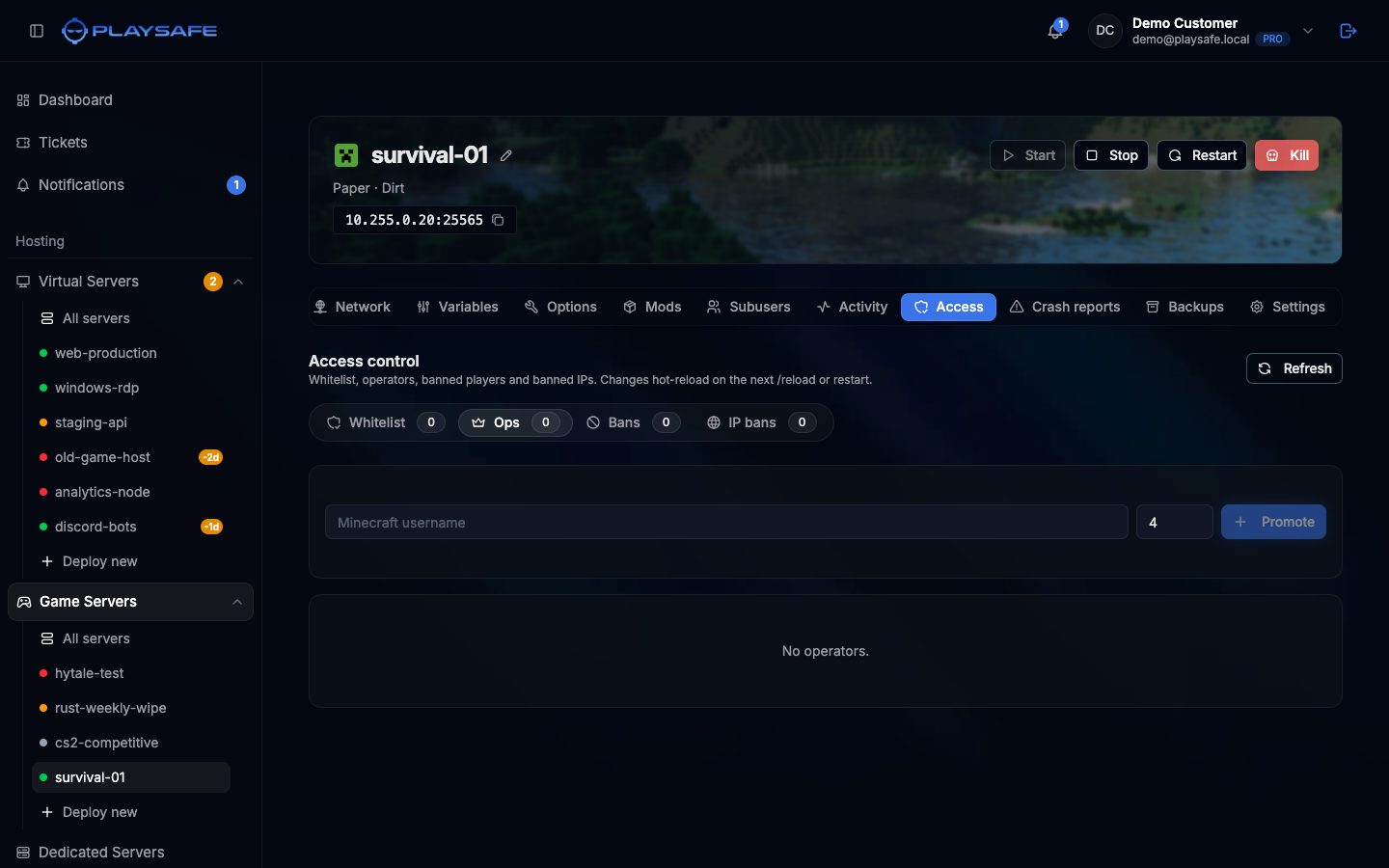
The tab has four subtabs, each with a counter: Whitelist, Ops, Bans and IP bans. Refresh at the top right reads the files again.
Whitelist
The whitelist only matters when whitelist mode is on (white-list in the Options tab).
- Open the Whitelist subtab.
- Type the player’s name in Minecraft username and click Add (or press Enter).
- The player appears in the list with their head, name and UUID.
To remove someone, click the trash icon on their row.
Ops
Operators can run admin commands. Minecraft has four op levels; higher levels allow more powerful commands, and level 4 includes stopping the server.
- Open the Ops subtab.
- Type the name in Minecraft username.
- Set the level (1 to 4) in the number box next to it. It starts at 4.
- Click Promote.
Each op shows a Level badge. The trash icon removes op rights.
Bans
- Open the Bans subtab.
- Type the name in Minecraft username.
- Optionally write a Reason (up to 200 characters). Minecraft shows it to the player when they try to join.
- Click Ban.
Each row shows the name, the reason, when the ban was created, who issued it and when it expires (forever for permanent bans). The trash icon lifts the ban.
IP bans
An IP ban blocks an address instead of an account.
- Open the IP bans subtab.
- Type the address in IPv4 or IPv6.
- Optionally write a Reason.
- Click Ban IP.
Be careful with IP bans
When changes apply
The panel writes the files straight away. A running Minecraft server keeps its own copy of the lists in memory, so:
- If the server is stopped, your changes are used on the next start.
- If the server is running, run
/whitelist reload(for the whitelist) or restart the server. Otherwise the server may write its old list back over your change.
For changes that must apply right now on a running server, use the buttons in the Players tab instead: they send the matching command to the server.
How names become UUIDs
When you add a name, the panel looks it up with Mojang to get the player’s UUID. If Mojang does not know the name or does not answer, the panel uses the UUID an offline mode server would give that name. Double check the spelling: a misspelled name on an online mode server will not match the real player.