
Payment Methods
PlaySafe orders are paid by card through Stripe Checkout, Stripe’s secure payment page. Prices are in euros.
Your card details stay on Stripe
Accepted payment methods
| Method | Accepted for orders? |
|---|---|
| Credit or debit card | Yes, through Stripe Checkout |
| PayPal | No |
| Bank transfer | No |
| Cryptocurrency | No |
PayPal, bank transfer and Wise do exist in PlaySafe, but only as ways to receive affiliate payouts.
When you pay
Every service starts with an order. You get one when you:
- deploy a new service (the deploy page takes you straight to the new order),
- click Renew on a virtual server or a game protection,
- receive a renewal order, which PlaySafe creates 7 days before a service expires.
All unpaid orders are listed in Account > Billing.
How to pay an order
- Open Account > Billing. Unpaid orders are listed in the Outstanding balance box at the top.
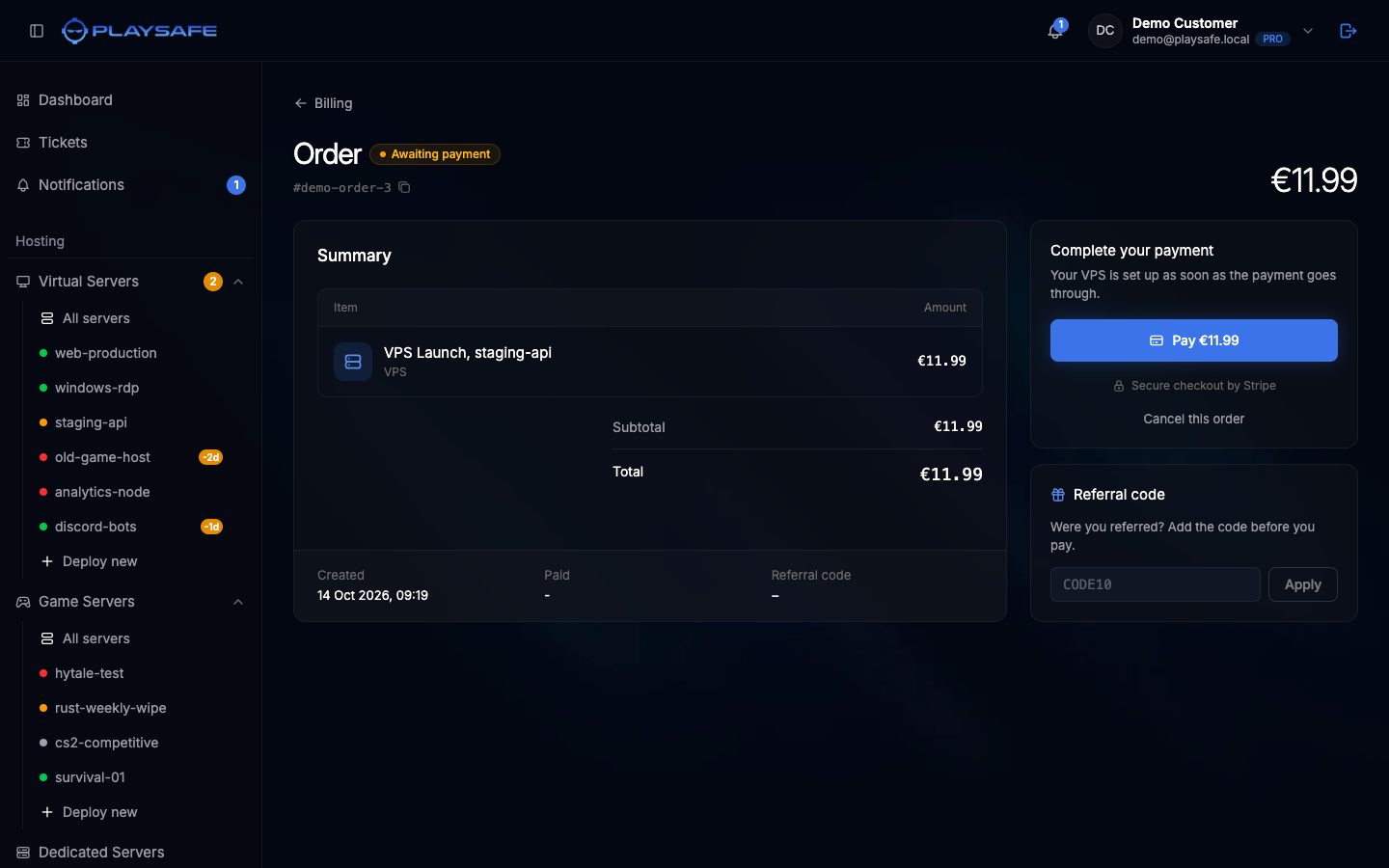
- Click Pay now next to the order. You can also click the order to open it and click Pay (the button shows the amount).
- You are taken to the Stripe checkout. Enter your card details and confirm the payment.
- Stripe sends you back to the order page in the panel, which shows Paid.
After the payment:
- a new service is set up automatically, and you get an email when it is ready;
- a renewal adds 30 days to the service, and a suspended service starts again;
- you get a payment confirmation by email and in Notifications.
If you were referred by a partner, add their code in the Referral code box of the order page before you pay.
If the payment fails
If the card is declined, or you close the checkout before paying, nothing is charged and the order stays unpaid. Open it again in Account > Billing and click Pay now to start a new checkout.
New services wait 48 hours
If the checkout does not open, the panel shows Could not open the checkout. Try again in a moment, and open a ticket in the Billing category if it keeps failing.