
Deploy Game Protection
Game protection puts a protected address in front of a FiveM, RedM, Rust or Minecraft server. You set it up from one page, Deploy Firewall, and pay the order it creates.
Open the page from any of these places:
- Sidebar: Security > Game protection > Deploy new
- Security > Game protection, button Deploy protection (top right)
The page has a form on the left and an Order summary on the right that fills in as you go.
Virtual servers already have a firewall
1. Game
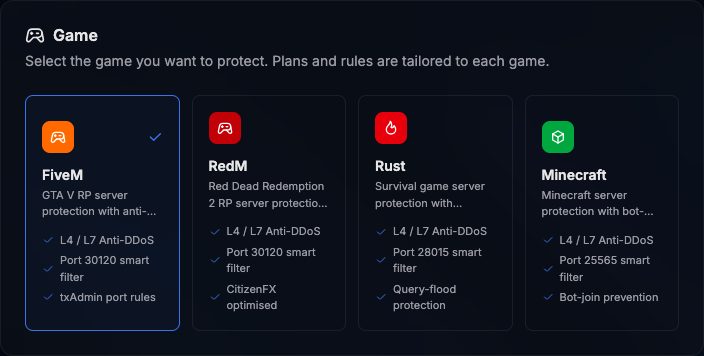
Click the card of your game: FiveM, RedM, Rust or Minecraft. The selected card shows a check mark.
The game decides which plans you see, whether you need a connect name, and the port PlaySafe forwards to your server:
| Game | Port forwarded to your server |
|---|---|
| FiveM | 30120 |
| RedM | 30120 |
| Rust | 28015 |
| Minecraft | 25565 |
The port is set by the game and cannot be changed on this page. If your server uses another port, open a ticket.
2. Plan
The Plan card lists the plans available for the selected game, with their name, description and price per billing cycle. Click one to select it.
If the game has no plans yet, the card says No plans available for your game and asks you to contact support. Open a ticket to ask about it.
3. Firewall name
Type a name in Name, for example My RP Server Madrid. It must have at least 3 characters (and at most 64). Only you see it in the panel; players never do.
4. Server connect name (FiveM and RedM only)
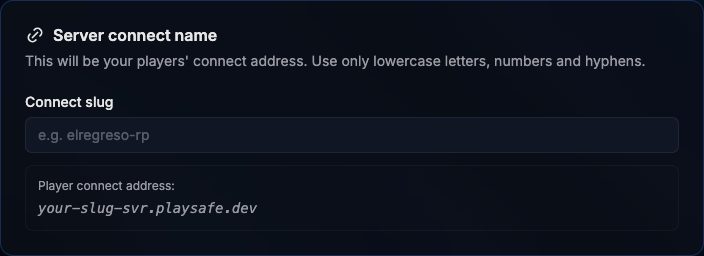
This card only appears for FiveM and RedM. Type a slug in Connect slug. It becomes your players’ connect address:
your-slug-svr.playsafe.devThe slug must be 3 to 30 characters long, use only lowercase letters, numbers and hyphens, and start and end with a letter or a number. The Player connect address box under the field shows the final address and the connect ... command players will type.
5. Backend IP
Type the public IPv4 address of your server in IP address, for example 185.213.45.12. The field turns green with Valid IPv4 address when the format is right. When you place the order, PlaySafe also refuses private and reserved addresses (10.x.x.x, 192.168.x.x and similar) and IPv6.
To find the IP, check your hosting provider’s dashboard or run curl -4 ifconfig.me on the server. See Protected IP vs Backend IP.
6. Location
The Location card is informational. Protection runs from France (Paris), marked Available. Germany, the United States and the United Kingdom are marked Coming Soon. There is nothing to select.
7. Go to checkout
When every field is valid, the Go to checkout button in the Order summary becomes active (until then it reads Fill in all fields to continue).
- Click Go to checkout. PlaySafe creates the protection with status Pending and an order for the plan.
- You land on the order page in Account > Billing. Click Pay to pay it securely with Stripe.
- Once the payment is confirmed, the protection becomes Active for 30 days and you receive an email.
- It appears in Security > Game protection and in the sidebar under Game protection.
If you leave without paying, the order stays pending in Account > Billing and you can pay it from there. A first order still unpaid after 48 hours is cancelled and the pending protection is removed.
After it is active
- Open the protection from Security > Game protection.
- Follow the Installation Guide on the Overview tab for your game.
- Give players the protected address: the player connect address for FiveM and RedM, or the protected IP for Rust and Minecraft.