
Network
The Network tab lists the allocations of your server. An allocation is an IP:Port pair reserved for your server. The primary allocation is the address players connect to, the one shown in the header. Extra allocations are useful for things that need their own port, such as a voice plugin, a query port or a second listener.
Open it from Hosting > Game Servers > your server > Network.
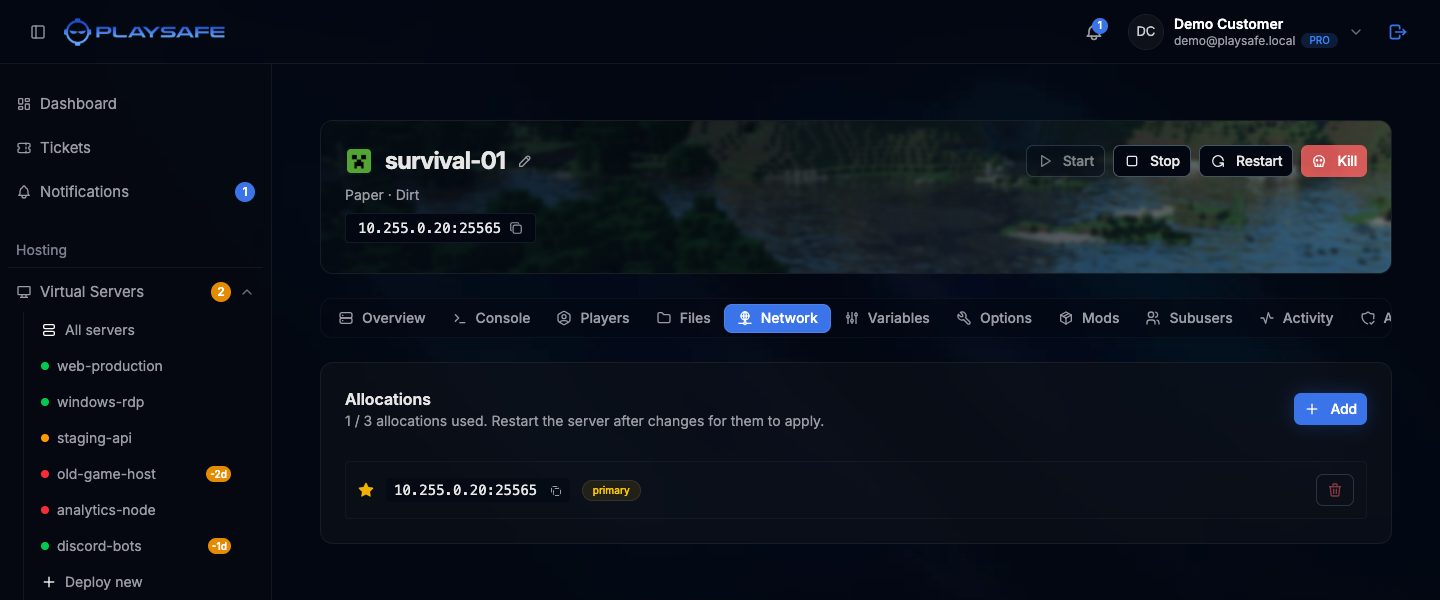
The card header shows how many allocations you use out of the limit of your plan, for example “1 / 3 allocations used”.
Add an allocation
- Click Add.
- A free port is assigned automatically and appears in the list. You cannot pick the port number yourself.
- Restart the server so the game can use the new port.
Add is disabled when you have reached the limit of your plan. If no ports are free at that moment the panel shows an error; try again later or open a ticket.
Change the primary allocation
- Click the star on the left of the allocation you want as primary. The current primary has a filled yellow star and a primary badge.
- Restart the server. Players then connect to the new address.
Release an allocation
- Click the trash button on the right of the allocation.
- Confirm with Release. The port is freed and may be given to another server.
- Restart the server for the change to apply.
The primary allocation cannot be released. Make another allocation primary first.
Copy an address
Click any IP:Port in the list to copy it to your clipboard.
Permissions for subusers
allocations.read to see the list, allocations.create to add, allocations.update to change the primary and allocations.delete to release. See Subusers.