
Deploying a VPS
You order a VPS from a three step wizard, pay the order, and the server is set up automatically after the payment goes through.
Verify your email first
Step 1: Open the deploy wizard
In the sidebar, open Hosting > Virtual Servers > Deploy new. You can also click Deploy new server at the top right of Hosting > Virtual Servers > All servers.
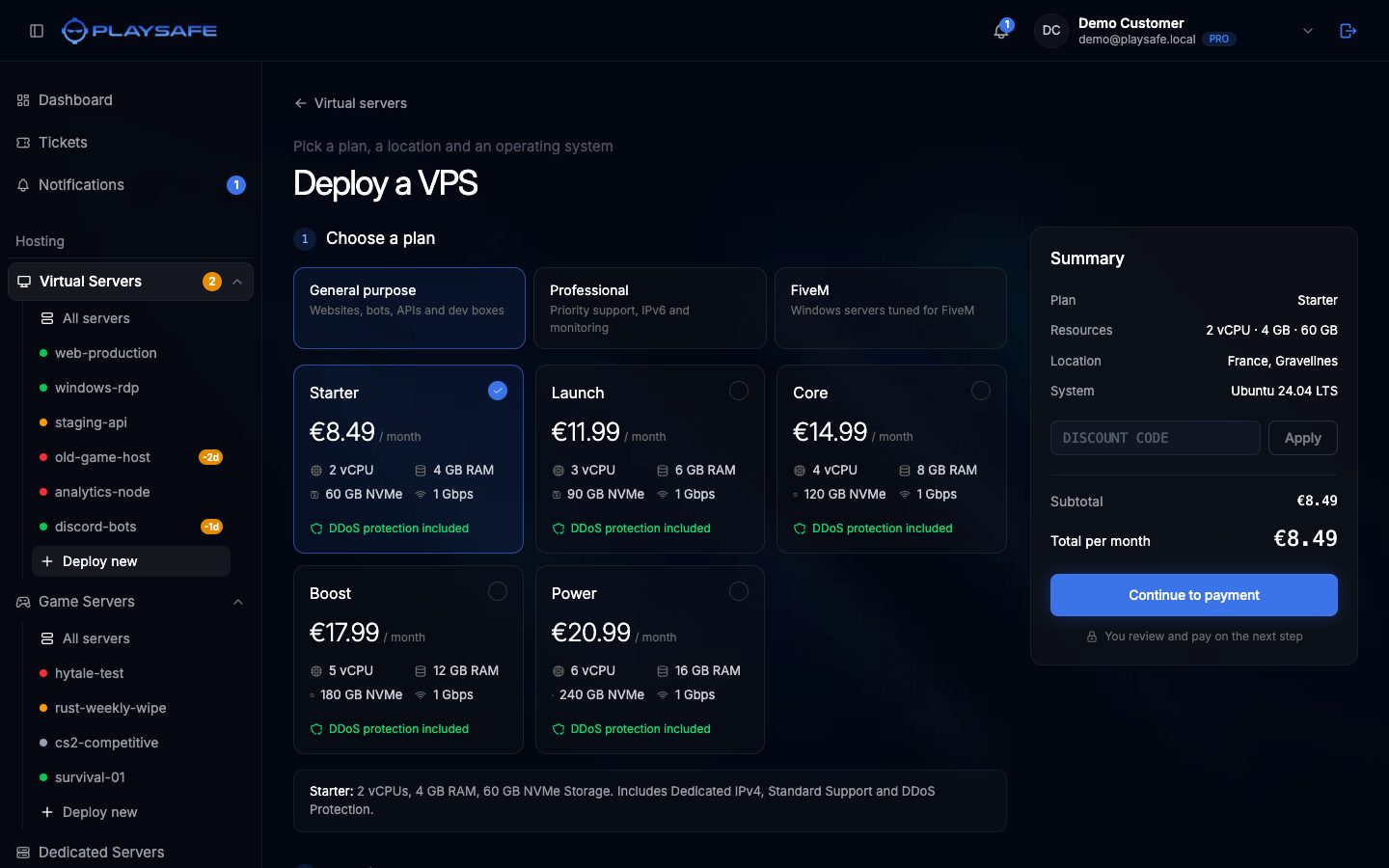
The page is titled Deploy a VPS. The Summary card on the right updates as you choose.
Step 2: Choose a plan
Under 1 Choose a plan:
- Pick a tab: General purpose, Professional or FiveM.
- Click a plan card. The selected card shows a check mark, and the plan description appears under the cards.
Each card lists vCPU, RAM, NVMe storage, port speed and the monthly price.
Step 3: Choose a location
Under 2 Location, click France (Gravelines) or Spain (Logroño). Locations marked Coming soon cannot be selected yet. See Locations.
Step 4: Choose an operating system
Under 3 Operating system, click one of:
- Ubuntu 24.04 LTS (Recommended)
- Ubuntu 25.04 (Latest)
- Debian 12 (Stable)
- Windows Server 2022 (RDP access)
FiveM plans only offer Windows Server 2022, and the wizard selects it for you.

Step 5: Review the summary and pay
- Check Plan, Resources, Location and System in the Summary card.
- If you have a discount code, type it in Discount code and click Apply. A valid code shows the percentage applied and a Discount line. An invalid one shows “That code is not valid”.
- Click Continue to payment. The panel creates the order and opens the order page.
- On the order page, check the total. If someone referred you, add their code under Referral code before paying.
- Click Pay and complete the payment on the Stripe checkout page.
If you change your mind, click Cancel this order on the order page. An unpaid order for a new server is cancelled automatically after 48 hours.
Step 6: Wait for the server
After the payment, the server appears in Hosting > Virtual Servers with the Pending state while it is set up. When it is ready:
- Its state changes to Running and it gets an IP address.
- You receive an email titled Your Virtual Server is Ready with the IP address, username and password.
- An edge firewall is created for the server automatically. You manage it from the Network tab.
The username is root on Linux and Administrator on Windows Server.
Keep the email safe
If the state changes to Failed, open a ticket from Tickets in the sidebar so the team can look at it.