
Reinstall OS
A reinstall erases the server and installs a clean operating system. Use it to start again after a problem, or to switch to another system, for example from Windows Server to Ubuntu.
What a reinstall does
- Deletes everything on the disk: files, databases, settings and installed software.
- Installs the operating system you pick.
- Creates a new password and emails it to you.
- Keeps the same IP address, plan and renewal date.
The username follows the system: root on Linux, Administrator on Windows Server.
All data is lost
How to reinstall
Only the owner of the server can reinstall it, and the server must be active or suspended.
- Open Hosting > Virtual Servers and click your server.
- Open the Settings tab.
- In Danger Zone, click Reinstall next to Reinstall Server.
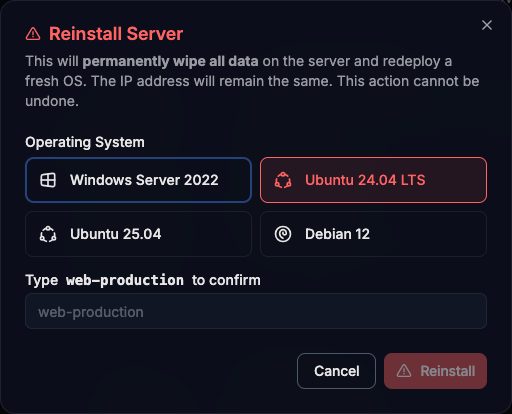
- In the dialog, pick the new system under Operating System: Windows Server 2022, Ubuntu 24.04 LTS, Ubuntu 25.04 or Debian 12.
- Type the server name exactly as shown in Type … to confirm.
- Click Reinstall.
The server goes to the pending state and the Activity list on the Overview tab shows Reinstall started. When it finishes, it shows Server reinstalled with and the new system, and you receive the Your Virtual Server is Ready email with the new password. It usually takes a few minutes.
If the system you picked is not offered where your server runs, the panel shows an error with the systems you can choose.
After the reinstall
- Get the new password from the email (on Windows it is also in the Console tab).
- Your computer may warn that the server’s SSH host key changed. That is expected after a reinstall: remove the old entry with
ssh-keygen -R <your-vps-ip>and connect again.
Your edge firewall rules are kept, since they live in front of the server.