
Attack Notifications
Each firewall and game protection has its own notification channels. PlaySafe uses them when an attack starts and when it ends.
Open them from Security > Attacks and click the Notifications tab at the top right (/panel/alerts?tab=notifications).
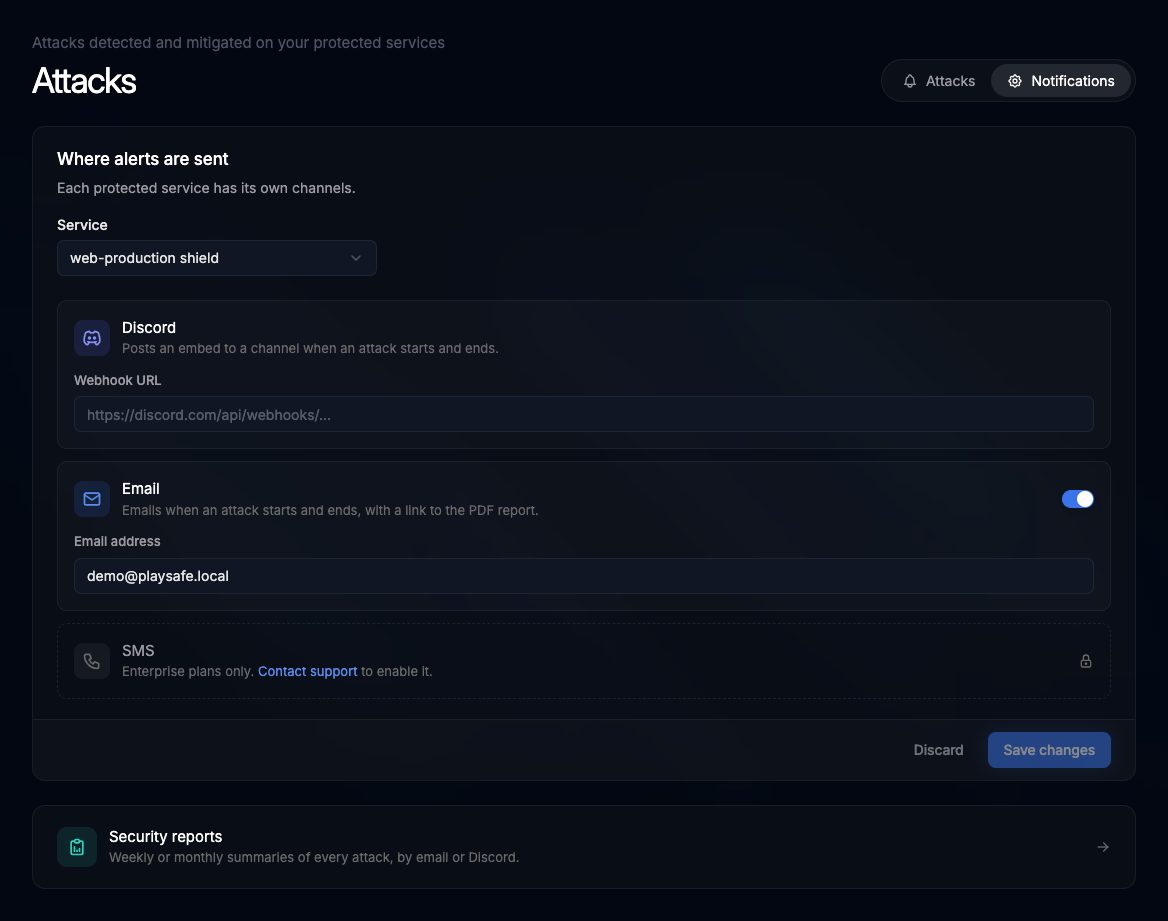
Set the channels
- In Service, pick the firewall or game protection you want to configure.
- Fill in the channels you want (see below).
- Click Save changes. Discard brings back the saved values.
Repeat for each service. You can send each one to a different channel.
Discord
Posts an embed to a channel when an attack starts and ends. Paste the channel’s webhook in Webhook URL. It must start with https://discord.com/api/webhooks/; leave it empty to turn Discord off.
To create a webhook in Discord:
- Open the channel settings (Edit Channel) and go to Integrations.
- Click Webhooks, then New Webhook, and give it a name such as
PlaySafe Alerts. - Click Copy Webhook URL and paste it into PlaySafe.
Emails when an attack starts and ends; the end email links to the PDF report. Use the switch to turn it on or off, and type the address in Email address. By default it uses the email of the account that owns the service.
SMS
The SMS row is locked. The panel shows it as available on Enterprise plans only, through support.
Only the owner can save
What you receive
| When | What arrives |
|---|---|
| An attack starts | A Discord embed and an email (for the channels you set), plus a notification in the panel bell |
| The attack ends | A Discord embed and an email with the result and figures of the attack, plus a panel notification |
Each attack also appears in Security > Attacks whatever channels you set.
Use a private channel
Prefer a summary?
The Security reports card at the bottom of the tab takes you to Security > Reports, where you can schedule a weekly or monthly summary instead. See Security Reports.